Showing posts with label How To's. Show all posts

30 March 2017

// // Leave a Comment

How To Speed Up Your Android Without Rooting?


Today there are more than billions of people who are using Android. Many people have a concern about slowing down their Android device as the device’s speed gets slower with the time. So today I am here resolve that issue, there could be multiple factors that can be responsible for the slowdown of android speed like it can be due to low memory, RAM and any other problem like viruses and much more other factors. Now with the methods that I have discussed in this post, you can comfortably Speed Up Your Android Device.


Steps To Speed Up Android Without Rooting:


There are many factors that can influence your Android speed. And the methods I'm going to discuss here are for non-rooted smartphones. These methods are also for those who don’t want to root their smartphone.

1. Manage Your Internal Storage
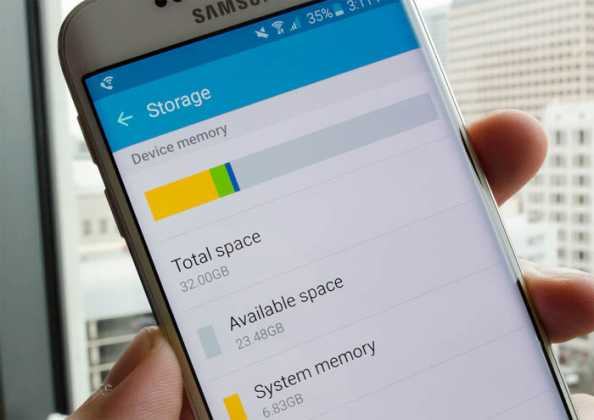

The major thing in an Android is its internal storage. It is the physical memory that an Android uses to store all the apps in it. So it’s always better to choose an Android that is having perfect internal storage capacity and second thing is to manage your internal storage perfectly.

2. Remove Bloatware


If you have RAM above 2GB then you don’t need to worry about bloatware. However, if you have less than 2GB of RAM then you need to remove the bloatware. It will show some positive effects on your smartphone efficiency. Therefore, make sure to remove the bloatware that you don’t use.

3. Clear Apps And System Cache
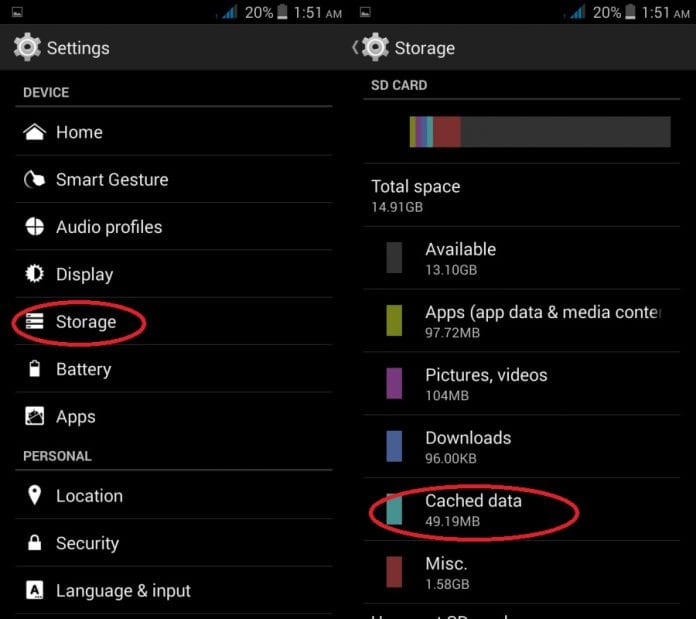

You Android device stores the temporary files, cache in your phone’s internal storage. If this storage space exceeds the standard limit then it can completely ruin your phone’s performance. Since you need to clear your stored apps caches to free up storage space that might boost your Android’s performance

4. Remove Unnecessary Widgets
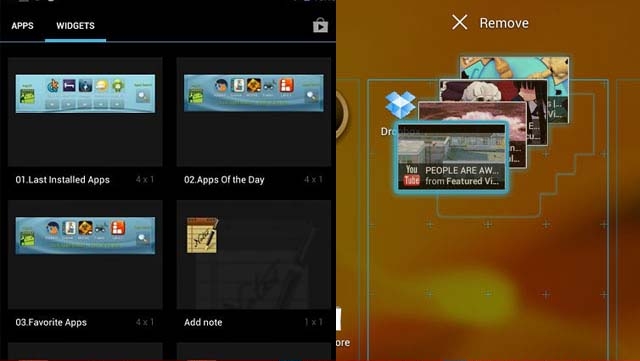

Many of you like to use widgets on your Android device. However, you may be concealed to the fact that your widgets can be the reason of slowing down your Android speed. As these widgets occupy the space of Random Access Memory that is responsible for multi-tasking on your Android. So, it’s better to remove all the unused widgets in your Android.

5. Window Animation & Transition Scales


Every Android device has its own animation scales depending upon their qualities. These animations have many affect on your Android performance as they have loaded on both the battery and working. So the better choice is to reduce them as much as possible. To do so, just Go to Settings->Developer Option->Windows transition scale->0.0. Do the same with animation scale.

6. Update Firmware Of Your Android
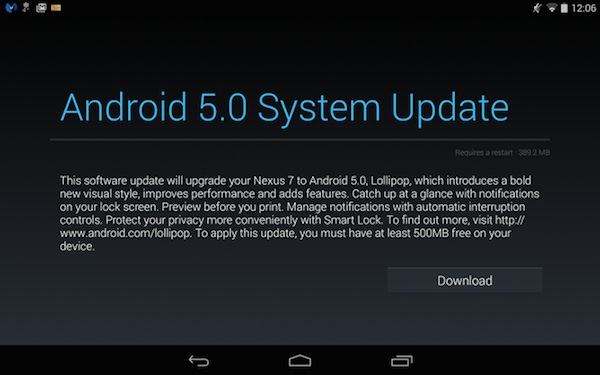

A new firmware upgrade always comes with better updates that can fix all the previous bugs and can help your Android to perform better. So it’s good to upgrade your Android to the latest version of your Android respective firmware. Also, you can upgrade it through your About Phone option or you can flash the latest one in your Android.

7. Disable Auto Sync


If you have connected lot’s of accounts on your Android like WhatsApp, Snapchat, Gmail, Outlook etc then you need to disable the auto-sync feature. The auto-sync feature reduces your mobile phone performance and it consumes lots of battery life too.

8. Remove The Background Running Apps
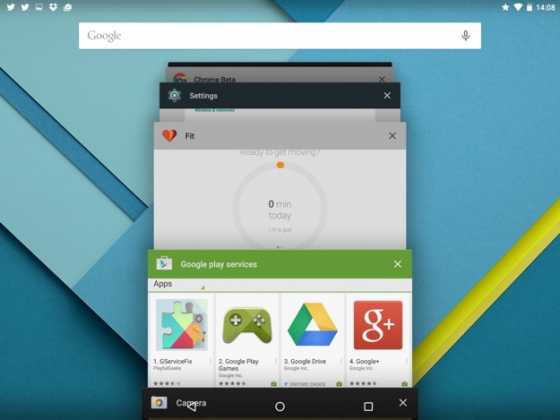

As we have already told that RAM is responsible for the Android performance and all the background and current running process works on the Ram so it’s better to close all the apps running in the background.

9. Using Apps To Speed Up Your Android

There are many apps available on Google Play store that claim to boost up your Android device. Not many of them are useful but very rare are there who do their work perfectly as you can use DU speed Booster & Cleaner which is trusted by 230 million users, DU Speed Booster is the only all-in-one speed booster, trash cleaner and antivirus app that optimizes your background apps, memory space, junk (cache) files and battery power.

Features Of DU Speed Booster:
  • One-tap Boost: A single touch to speed up your devices and release memory
  • The junk-creating behavior of millions of apps has been analyzed so that DU Speed Booster & Antivirus can efficiently hone in on its targets (cache and residual files) with perfect accuracy.
  • Scan installed apps, memory card content, and new apps automatically.
  • Introducing the Charging Screensaver, to boost the charging speed by 20%.

10. Restore Phone To Factory Settings
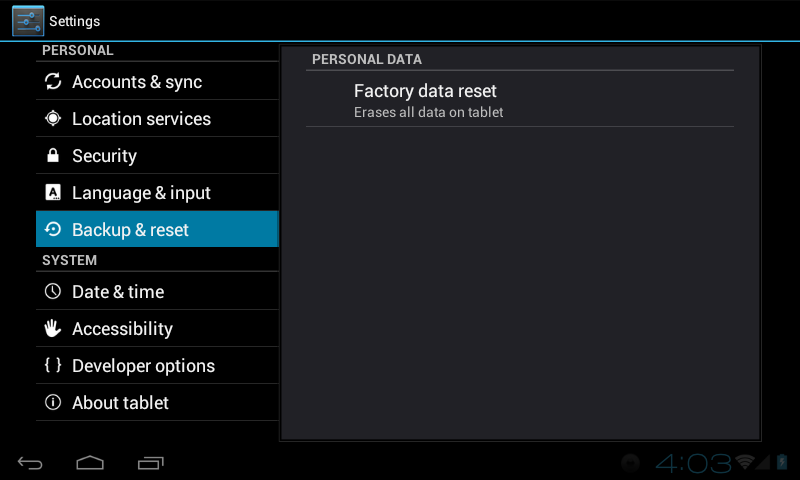

If you have tried all the above-mentioned method and if all failed. Then you need to Factory reset your Android device. Factory resetting your Android device clears all the cache and junk files, and it simply clears your phone memory. All the data stored in your phone memory will be cleared in the process. However, you will notice the increase in the speed of your device after resetting your device.

11. Use Startup Manager
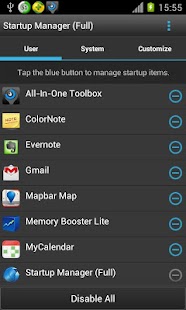

You all might have experience lag during startup. Well, this is because all the apps installed on your device starts at the same time which consumes lots of RAM. You can use free app Startup manager to enable and disable the item that lots while you turn on your Android device.

12. Android Launcher
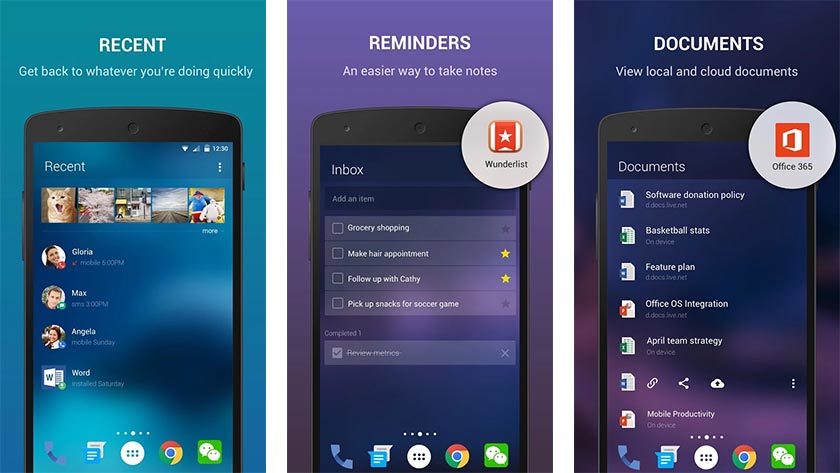

Sometimes, outdated devices lag a lot. Users can experience slow down or sudden crash while opening App drawer and while scrolling through the home screens. Any third party launchers can fix the issue for you because third-party launchers are frequently updated.

13. Using MSAA settings
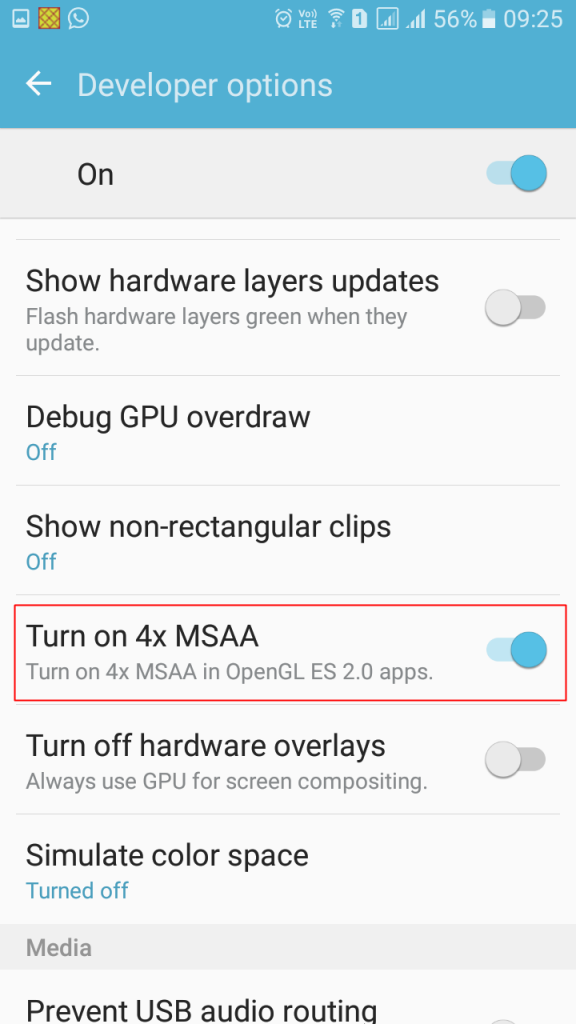

Well, this feature comes pre-loaded with Android. Users need to enable this option from Android developer options. MSAA stands for multi-sample anti-aliasing. Users need to search for “Turn on 4x MSAA” on developer option and enable it. However, must remember this feature is very useful for games. If you run High-end games and your system lags, then this function will be helpful. However, this can drain your battery faster.

14. Use CCleaner
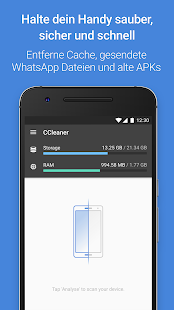

The reason why we recommend you to use CCleaner is that this app helps a user to remove junk, reclaim space, monitor their system and browse safely. You don’t need to go through every app to clear the cache manually. CCleaner is the best app which can improve your phone performance in one touch.

15. Timely Reboot
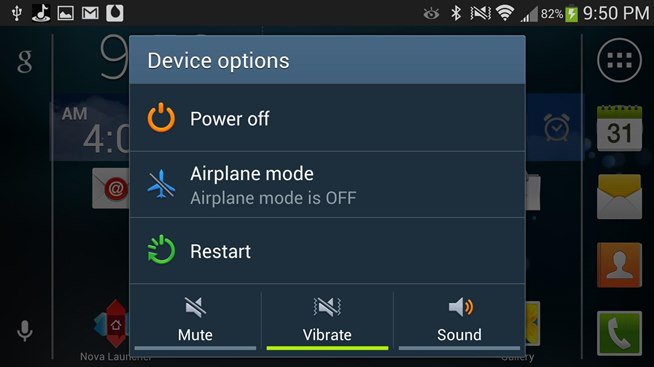

So this is all about Speed Up Android Without Rooting. By following all these, you can easily boost up your Android speed without rooting, and there will be no need to void warranty. So just follow up all the guides above to speed up your android. Don’t forget to share this useful post with your friends.
Read More

26 March 2017

// // 2 comments

How To Install Multiple Bootable Operating Systems In One USB


Have you ever thought of creating a Multiboot USB drive for your currently running Windows? If not then here is something that you might not be knowing! You might need that drive to recover your OS ( i.e Windows) in case it gets stuttered or gets any other problem as all these are not impossible for every OS and very often can happen to anyone. Or if you want to Play or check any other operating system (Without disturbing the default OS) directly through the Multiboot USB drive on your computer then you can also do that by just plug and play option with your Multiboot USB drive (No need to install it). There are many other uses of the Multiboot USB drives hence you should also go and make one for your current OS.


How To Install Multiple Bootable Operating Systems on One USB?


For creating the MultiBoot USB, you will need to use some tools and software, and for that very process, there are some standalone software that helps to do the whole process simply under one interface only. So let’s check out some of the best software for this method.


#1 MultiBootUsb Link


This is an amazing tool that is made for the purpose of making the Multiple Bootable USB Flash drives. With this tool setup fixed inside your USB Flash drive that should be minimum 16GB free of space. Now run that setup file directly from the USB Flash drive on your computer whose OS you want on your drive. Now just using some of the options under the MultiBoot tab of the software, set up the operating system and then click on the “Create” button placed below in the panel. This will begin the process of transferring the Operating system to the USB drive that can be used afterward for plug and play it on any other system.

With same process followed, you can easily create another bootable ISO image for any other operating system on your Flash Drive. You can also check the working of the OS’s on your PC using the QEMU function inside the Tool under QEMU tab only.


#2 Xboot Link


Using this tool is either simple enough as while running this tool on your computer system you will just have to drag and drop the ISO files for your OS and then click on the Create USB button. On the next prompt window, just select the USB drive on which you want to install the Booting OS. After selecting your ISO and USB location to follow by clicking on the ‘OK’ button. This will let the tool to create the bootable file on your selected USB, and after a successful transfer of OS, you can then run it on any other device without the even need for installation. Use the same method for this app to add more ISO files to your USB and hence you can create the MultiBoot USB. Like MultiBootUSB tool this one also features the QEMO function with which you can live check the OS booting from your USB drive only.


#3 YUMI (Your Universal Multiple Installer) Link


This one is also one of the trending tools for creating multiboot USB, and by far this does the job pretty good. You can use the same process, and way out like the other two tools stated above to create the ISO image file for your OS on the USB and the only difference is the interface of the Tool that you could find out easy to transact although. And there is one excellent feature lacking in this tool that is either present in other two above tools QEMO function that could help to live preview the running of the created Bootable OS on the USB Drive.


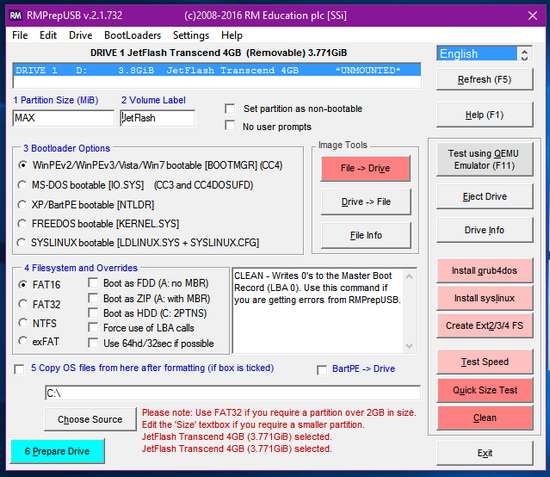
#4 RMPrepUSB Link


This is another best tool which you can have on your Windows computer. This comes with a cluttered interface. You might find it hard to use it. However, RMPrepUSB is specialized in creating multiple partitions on a single USB drive. This lets you create a partition in USB drive just like you do on your hard disk. You can then install multiple bootable disks in a different partition.


#5 WinSetupFromUSB Link


WinSetupFrom USB is a simple tool that prepares multiboot USB flash or fixed disk to install any version of Windows. So, if you want to install multiple operating systems on single USB device, you can have this tool. This tool lets the user install Windows XP, Vista, Window 7, Windows 10 and Linux distros.


So above discuss is all about How To Install Multiple Bootable Operating Systems on One USB. You have now learned in this article that how you can easily create a Multiboot USB drive for the Windows platform by using some of the tools and without any of the advanced language usage or coding etc. but only using the basic surfing techniques. Remember that to create the correctly working MultiBoot USB, and you will have to perform every of the step given in the article very perfectly.

Tell your thoughts in the comments!


Read More

13 December 2016

// // Leave a Comment

How To Create An Account On Wix?

BlogSpot and WordPress blogging platforms are discussed here on VTW a lot in the past years but I never expected that these two platforms could have a third rising competitor called "Wix" that is dramatically becoming a leading cloud-based website development platform to over 90 million users worldwide. It is currently the most popular drag and drop website building platform with HTML5 capabilities offering 15 different template categories. Whether you wish to create a free mobile responsive blog, online store or business site, it honestly makes every technical detail look like a piece of cake.

Today in this post I will tell you how to quickly create a wix account, so let's get started.

How to create a Wix account?


1 Sign up for free Wix account

wix template categories

2 Wix will give you two options: Either to customize your site using Wix ADI or Wix Editor. If you are a fan of Artificial Design Intelligence then you should go with Wix ADI but if you want to manually personalize your site using advanced features then go with Wix Editor.

Wix ADI editor

3 Choose a template out of 500+ professional free layouts

Over 500 Professional Wix Templates

4 Hover over a template and click the edit button

Wix Template Selection

5 Start customizing your site by add anything like text, background images & more using Wix website builder. Editing your site is simply fun. Just drag and drop the elements to give your site a perfect look based on your preferences.

Wix Website Builder Interface

6 Finally click the publish button and you will be asked to name your site domain.

Publish your Wix Website

You can either go with a free domain or you can choose to buy a custom domain to give your site a more professional look. Website domain charges at Wix are extremely cheap. You can either connect an existing domain you might have bought from an external domain registrar or you can choose to buy a new domain from Wix itself at a fairly reasonable cost.

Get a Custom Domain for your Wix Website

Finally you are ready to showcase your site to the world!


Read More

18 June 2016

// // Leave a Comment

Hack Forums To Read Content And Download Attachments Without Registration

Hello Friends! Using this hack we will be able to browse any forum without registration. Most of times when we are searching any content on Google, yahoo or another search engine, they show us forum results. When we open those forums they requires registration for viewing their content or using the forum. How i thought about this hack? I was searching on Google about some software's and Google displays lots of results and most of them are of forums. Whenever i tried to open any forum it ask for registration. So i really got mad by registering on forums. So i decided to use check the cached copy of the forum on Google and guess what i am able to see the content of the forums. Here the main idea lies, if google cache is able to bypass registration then why not us.. :P . So i have made the script setting for Firefox to bypass registration on forums. Requirements: 1. Mozilla Firefox 2. User Agent Switcher addon 3. Add On default user Setting Steps to bypass registration on forums: 1. Use Mozilla Firefox for using this trick. 2. Now got to Tools tab in Mozilla Firefox and then select Add On. 3. Now download User Agent Switcher and Install It. Then it will ask for restarting web browser. Just restart your Firefox. 4. Now Go to Tools in Mozilla Firefox and then go to User Agent Switcher and select edit user agents. 5. Now there Enter the Information carefully: Description : Googlebot 2.1 (www.viptechworld.blogspot.com) User-Agent : Googlebot/2.1+(+http://www.googlebot.com/bot.html)" Then click on OK. Bypass registration on forums 6. Now close that and Again go to Tools in Firefox and then to User Agent Switcher and there select Googlebot(www.viptechworld.blogspot.com) 7. You are done now. Now browse almost all forums without registration. Drawback or Limitation: Forums that has locked the bots from browsing their data cannot be bypassed using this hack. Also forums that uses noindex meta tag also cannot be bypassed using this trick. I hope you all like this article.If you have any queries then comment below....
Read More

03 June 2016

// // Leave a Comment

Safely Hide Adsense Ads By Using 'Display:None'

hide Adsense ads using "display none"AdSense new policy allows publishers to only hide Responsive Ads using CSS media queries. You can choose to control the display of your Ad visibility on different mobile devices. You can now choose when to show or hide an ad unit. All these is now possible thanks to the Responsive Ad units. We recently shared a tutorial on how to create responsive ad spots and how to stop AdSense from serving blank space on Responsive ad units by fixing the blank space error. Today we will take a step ahead and share the trick of hiding AdSense Ads  on any screen size you want using simply CSS "Display:none" property.  Note that Google only allows you to hide the content using the CSS property of display and it does not yet allow using "visibility:hidden" property so we will only follow techniques which goes in accordance with AdSense Program policies. Sites which are hiding the AD code using "visibility hidden" are surely not following recommended methods and pose a serious thread to your accounts so always follow authentic methods to manage your monetization strategies.

In this tutorial we will share how you can set a parameter with CSS media queries for smaller mobile devices so that no ad request is made and no ad is shown. We have applied it on our blog and have set ads not to display on small screens.

Isn't it illegal To Hide AdSense Ads?

Yes it is but only for synchronous ads but not for asynchronous which is the new code AdSense creates to render responsive ads on your blogger blog or website.

The official support site of Google says that it allows publishers to modify the Ad by hiding it using CSS3 Media queries for responsive Ad units (asynchronous) only but it disallows it for synchronous ads. Here is the block quote for verification:

Techniques to avoid

Here are some techniques you’ll want to avoid:

  • Hiding ad units at anytime (e.g., display:none), unless you're implementing a responsive ad unit.
  • Implementing AdSense ad code in a way that covers content
  • Using any means to force the display of more than three AdSense ad units on a page
  • Manipulating the ad targeting using hidden keywords, IFRAMEs, or any other method
  • Distributing ads in emails or software
  • Floating ads or units that slide to attract unwarranted attention

Google has suggested itself the technique of using display:none on one of its support page

If you want to only show ads for certain screen sizes you can use CSS to accomplish this. The following example shows you how to modify your ad code to use CSS3 media queries to hide ads for specific screen sizes..

Now when we have learnt that the method of using CSS display:none is completely Safe, allowed and legal, we can then proceed towards our tutorial.

Hide AdSense Responsive ADs

I assume that you have read our tutorial on creating responsive ad units, if not kindly read it first

You just need to make a slight modification to the CSS code of your ad code and mention on which Screen Size would you like to hide displaying ads. All code is same that we shared earlier except the yellow highlighted section

<style type="text/css">
.adslot_1 { max-width: 300px; height: auto; margin:10px 0px; }

@media (max-width:99px) { .adslot_1 { display:none; } }

@media (min-width:100px) { .adslot_1 { width:125px; height:125px; } }
@media (min-width:180px) { .adslot_1 { width:180px; height:150px; } }
@media (min-width:200px) { .adslot_1 { width:200px; height:200px; } }
@media (min-width:250px) { .adslot_1 { width:250px; height:250px; } }
@media (min-width:300px) { .adslot_1 { width:300px; height:600px; } }
@media (min-width:336px) { .adslot_1 { width:336px; height:280px; } }
@media (min-width:468px) { .adslot_1 { width:468px; height:60px; } }
@media (min-width:728px) { .adslot_1 { width:728px; height:90px; } }

</style>

<script async src="//pagead2.googlesyndication.com/pagead/js/adsbygoogle.js"></script>
<ins class="adsbygoogle adslot_1"
     style="display:inline-block;"
     data-ad-client="xxxxxxx"
     data-ad-slot="xxxxxx"></ins>
<script>
(adsbygoogle = window.adsbygoogle || []).push({});
</script>


The above code has no changes except the yellow highlighted section where I have set ads not to display for screen sizes less than 99px. For sizes greater than 99px, ads will display normally. I have chosen 99px because normally all smart phones today have a wider screen size and day by day screen sizes are getting bigger except for some old sets which have an extremely small size and it makes no sense displaying ads on smaller screen sizes.

Hiding them will block the ad from rendering and loading. The JavaScript will not load this time unlike in synchronous where the JS still loads despite setting display:none. This is one extra benefit of using async codes. So you are not actually setting Ads to not show or disappear you are actually telling AdSense not to load Ads for a specific screen size.

You can also set a custom width to hide ads on a specific screen size. Suppose you wish to Hide ADs on a screen size between 250px but wish to display it for other screen sizes  so you will edit the code as shown below

PS: I am just sharing the CSS code here for simplicity:

<style type="text/css">
.adslot_1 { max-width: 300px; height: auto; margin:10px 0px; }

@media (min-width:100px) { .adslot_1 { width:125px; height:125px; display:block; } }
@media (min-width:180px) { .adslot_1 { width:180px; height:150px; display:block; } }
@media (min-width:200px) { .adslot_1 { width:200px; height:200px; display:block; } }
@media (max-width:250px) { .adslot_1 { display:none; } }
@media (min-width:300px) { .adslot_1 { width:300px; height:600px; } }
@media (min-width:336px) { .adslot_1 { width:336px; height:280px; } }
@media (min-width:468px) { .adslot_1 { width:468px; height:60px; } }
@media (min-width:728px) { .adslot_1 { width:728px; height:90px; } }

</style>

The code above will hide ads for a screen size 250px or less than 250px but will show ads for 200px, 180px and 100px or for screen sizes greater than 250px.

Note that we are using max-width to hide ads and not min-width condition. This is important because Ads are hidden and no AD request is made only when you use the max-width condition.

That's it!

Need Help?

Hope this tutorial may help you understand how to better control the display of Ads on your web pages. I am open for as many questions as you may wish to ask. Feel free to post your queries in the comment box below.

Peace and blessings buddies! =)

Read More
// // Leave a Comment

Beginner's Tutorial On Color Isolation Via Photoshop

Color isolation Example

In this tutorial i will introduce you with a color isolation technique used in photoshop to do some sort of amazing thing with the pictures.Okay by not wasting more time let's get into the tutorial...

Color Isolation For Beginners

The idea of this tutorial is to add a color isolation in pictures.This is mostly for beginners and it deals with vector masking.This was done using Photoshop CS but if you have version 7 or 6 this few steps will be really easy to follow. Pick a picture you want to manipulate, or use this same one..
Sample Picture
1) First we have to duplicate the layer and Desaturate on of them is the Shift+Control+U keys.

2) So now we have 2 layers : One with color and the other without.Select the colored layer and add a vector mask to it . Ok . When working with masks, you must know that the only colors used are black and whyte. Black erases while whyte paints. In that case you can also use different shades of gray for different opacities.
Sample Image 2
3) Lets use a solid round edge brush and paint with black all the picture exept the lips and the eyes.You should get this result.
*Its Important to use a solid edged brush or else we will get different opacities.
Result Image
4) Lets make the lips and eye brighter.Select the image thumbnail in the layers box.Then select the Dodge Tool, and use it on the lips. Don't use it too much tho .. or else the colors will get all messed up. So now you should get this result!


5) Now its time to blur the whole thing up!Select the Blur Tool and use it on both layers.Use it as much as u want to get the desired look you're looking for.


And here you go! I hope this tutorial will help you in future projects!!

Final Words

I hope you enjoyed the tutorial.Like our facwbook page to get posts like this and many other tutorials.Till then happy picture editing.
Read More

14 May 2016

// // Leave a Comment

How To Track The Location Of Your Android Phone Via Google Search

Find my phone

Find My Phone

Losing a mobile phone is not uncommon and can happen to anyone. However, losing a Smartphone can really be devastating for the user. You not only lose the contacts and media content, your precious data including financial information is at stake. Not to mention the very expensive piece of hardware.

There are a few awesome options to track an Android smartphone, but Google recently unveiled a new and easier way to track a misplaced Android device. It makes locating your lost or misplaced Android device as simple as child’s play, literally.

How to Use the Feature?


In a recent development, Google has made locating an Android device simpler than ever before. You will need to use regular Google search on your computer browser for this.
  1. First of all, you will need to ensure you are logged into the same Google account from computer browser that is being used in your Android tablet or phone.
  2. It is necessary to have the newest version of Google app loaded on the device.
  3. Now, type this phrase-“find my phone” in the search bar of the web browser on the PC.
  4. find your phone
  5. When the aforesaid conditions are met, Google pops up a map on the browser window showing the location of your phone.
  6. The location is more or less accurate and the search may take a few seconds.
  7. You will find the name of your device displayed with the results as well.


Now, you will need to pinpoint the exact location of the device. To do so, click on Ring on the result window. Google will pop up a message saying the phone will ring at peak volume for 5 minutes. To stop the phone ringing, you need to press the power button on the phone.

Why Google Your Lost Android Device?

Some users may feel why they should use this new feature to locate a misplaced Android device when the same can be achieved by using the Android Device Manager (ADM). The much touted Android Device Manager app lets users track their Android phones and they can also wipe data remotely using this app. Google unveiled this app way back in 2013.

The truth is this feature is also being powered by the Android Device Manager but in a different way. The advantages of using the new Google search based device tracking feature are:

  1. You need not use the ADM or any third party utility for this. All you need to do is use the PC’s usual Google search feature using a web browser. The new feature basically uses the ADM functionality in online search.
  2. You can actually use any PC with internet connection to track your Android device. You need to be logged in using the same Google account being used by the phone.
  3. The feature works in the same way on an Android tablet. In fact, you can track the location of more than one Android device using the new search feature. The devices will be listed separately in the search result and you need to choose which one to ring.
  4. Above all, its quick, convenient and absolutely free.

So, What’s the Caveat!

As you learn about this new feature to track a misplaced Android device and try it, you may feel quite charged up about this. However, the new feature is not exactly a silver bullet. It does have some limitations and you need to be aware of these too!

  1. The feature is of no use when there is no wifi connection or cellular network available.
  2. If the phone is switched off or the thief removes the battery, this feature will be ineffective.
  3. Both the PC you are using and the device that has been lost, should be logged into the same Google account and they need to be synced.
  4. It is an Android exclusive feature. Do not try it on iOS devices with Google app installed. As a matter of fact, iOS users have their own app to locate lost devices which relies on iCloud.

Wrap up

There is no denying Google has come up with an impressive and idiot proof feature for users to locate an Android device that is misplaced. It will save you from the hassles of searching the house frantically when the device is buried in a laundry basket or under a heap of pillows!

It is meant for locating the device only. So, for erasing data securely and remotely, you will still need to use the ADM app. Share your views via the comments.
Read More