Showing posts with label Blogger Tips & Tricks. Show all posts

07 March 2017

// // 2 comments

Everything You Need To Know About Becoming A Successful Blogger


If you are into blogosphere then you must have heard this saying that , "Behind every Successful Blogger there is lots of ...... " (obviously!)

So today I am going to tell you how to Become A Successful Blogger, well that title itself seems like a joke but really it is a honest question that almost everyone new to blogging or blogosphere have in their mind.

Becoming successful is not a one night work, you have to put yourself to fire and and invest a lot of time in this field to become successful. Do you know that all these successful bloggers you hear about now started blogging earlier when there is not much craze about this thing and today they are famous because of the articles they wrote back then. Here it is important to note that Investing Time is the key factor and you are no exception.

Check the infographic below by TWBG to know about tips and tricks to follow and get on the path of becoming a successful blogger.

And yes, now can you fill in the blank of that saying above?

Don't forget to share the article on social media as well as share your views in comments!

THE INFOGRAPHIC


Read More

06 September 2016

// // 1 comment

How To Fix XML Parsing Errors In Blogger and Wordpress?

fix XML errors in blogger editorMost often when you insert a Facebook JavaScript or AdSense JavaScript in your blogger template editor, you often come across XML Parsing errors that prompts and says "The reference to entity "version" must end with the ';' delimiter." Blogger blogs are coded in XHTML and  XML is quite strict in following correct syntax formatting than HTML. XML is surely unforgiving in this case. Blogger interprets all your document as XML rather than as HTML. XML is PCDATA (Parsed Character Data) by default which means that XML parsers will normally parse all the text in a document. As a result when we insert JavaScript inside blogspot templates, all script inside the JavaScript tags is treated as a text and due to the presence of some illegal special characters like "<" , ">" and "&" , you often face the following error:


Error parsing XML, line 1458, column 64: The reference to entity "version" must end with the ';' delimiter.


error parsing xml in blogger

What are the special characters in XML that causes error?

XML is a human readable form of textual data. It parses all the text in a document and gives errors for the following 5 special characters:
  1. (<)  - less than
  2. (&) - ampersand
  3. (>) - greater than
  4. (")  - double-quote
  5. (')  - apostrophe or single-quote
The following three are more crucial:
  • "<" will generate an error because the parser interprets it as the start of a new element.
  • ">" will generate an error because the parser interprets it as the end of a start-tag or an end-tag
  • "&" will generate an error because the parser interprets it as the start of a character entity.

Two ways to fix XML errors in Blogger

XML errors can be avoided by using two methods:
  1. Use CDATA
  2. Escape HTML entities

1. Use CDATA
The term CDATA refers to (Unparsed) Character Data which is used about text data that should not be parsed by the XML parser. To avoid errors, all script code is enclosed inside a CDATA section. Everything inside a CDATA section including the 5 special characters is ignored by the parser.
A CDATA section starts with "<![CDATA[" and ends with "]]>":
Next time when you add your Facebook code, enclose it inside CDATA as shown below:
 
<script>      
//<![CDATA[
(function(d, s, id) {      
  var js, fjs = d.getElementsByTagName(s)[0];       
  if (d.getElementById(id)) return;       
  js = d.createElement(s); js.id = id;       
  js.src = "//connect.facebook.net/en_US/sdk.js#xfbml=1&version=v2.3&appId=";       
  fjs.parentNode.insertBefore(js, fjs);       
}(document, 'script', 'facebook-jssdk')); 

//]]>          
</script>


All your script code will exists inside the CDATA and blogger editor will not parse the script code and thus wont give any errors.
The reason why Facebook script gives errors in blogger is due to the presence of a special character (&) that is used before the variable "version" as highlighted in the code above. "&" will generate an error because the XML parser interprets it as the start of a character entity and thus it prompts an error that says:

The reference to entity "version" must end with the ';' delimiter.


2. Escape HTML entities
Another simple method is to escape all 5 special characters and instead use the legal characters as alternatives to the above 5.
  • Replace < with &lt;
  • Replace  > with &gt;
  • Replace  "  with &quot;
  • Replace  '  with &#039;
  • Replace  & with &amp;
PS: Note how every alternative character set ends with a delimiter (;)
This method will help you encode your AdSense code and paste it inside your template without errors. It will also help you paste HTML code inside blogger comments!
This method is also called as HTML encoding and we have built a Special tool for this purpose to help you encode HTML characters with ease.To use the tool simply scroll down to comment box and click conversion, a box will appear paste all your code there and click convert. Your code will be converted.

Need Help?

I hope now you will be able to add social media plugins and third party scripts inside your blogger templates without any errors. Do let me know if you need any further assistance or clarification on any point. Would love to give a hand buddies! =)
Read More

07 August 2016

// // 2 comments

[Fixed] Wrong Page Ranking For An Important Keyword?

Let’s assume that your site has ranked for a keyword you’ve aiming. This is brilliant news, right?  Of course, it is!  But what if the page that is ranking finishes up being unrelated.
You certainly met something like this when you googled something – the first few outcomes that came up looked feasible, but for other reason, one of the top labels didn’t look like a good fit. If the page doesn’t reply to your query, that means the wrong page is ranking for that particular keywords, and it is generally not intentional.
This is not a good sign, because if the page presented does not effectively represent the query, then
1. It can adversely affect your click-through rate and conversion rate and traffic because of an unsuitable title or description.
2. Receiving the wrong page and not finding relevant things, your newly-arrived persons are likely to jump out from your site without converting.
So, what should you do? Here’s the thorough process to analyse, recognise and fix the issues as soon as they arise.

Recognising the wrong ranking pages

Sometimes it’s impossible to regulate each and every of your site’s ranking pages. And at times you just don’t have any information about the site. So, to initiate, you need to analyse if there are any wrong page issues to be fixed.
Just choose how many keywords you’d like to review. Analysing all pages ranking for your 1500 keyword queries are something you maybe can’t afford and also don’t need. So, we’ll choose only the inquiries those are vital and the ones that can drive you the most traffic.
  • Detect your most valuable Google queries.
  • Check which pages rank for your most important queries.
  • Analysis the ranking pages to see if they are the ideal pick for the queries.
  • Detecting the fundamental issue
    Now from where to improve, let’s grasp how you can do that. And meanwhile there can be a number of reasons that cause the problem, you need to go through them step by step.
    1. Are there any technical/quality problems that inhibit the preferred page from ranking high?
    You have a proper page to match the query but it still doesn’t rank may be because:
    • The page is blocked from search engine bots.
    • The page has insufficient/low quality/poorly optimized content.
    • The page has not enough external links.
    • The page has not enough internal links.

    2. Do you even have a page that exactly matches the given keywords?
    If you don’t have an enhanced page to rank for the keyword, Google will rank the most appropriate selection it could find. Hence, you probably know for sure if there is a proper web page on your site.
    3. Are the page rankings being cannibalized by another page of yours?
    This can be the possible issue, in Google’s senses, a sum of your sites pages are related to the same query and most probably the ranking capability of the right page is overcome by another, less appropriate but more influential page of yours. Now that we’ve spotted the case of page and to avoid cannibalization here are the some possibilities you have:
    • Re-point internal links
    • Request some external link deviations
    • Re-point redirects
    • Take away keywords and related terms

    Maintain safe future of your website

    Now, all of the above practices will help you detect and correct the page ranking issues. Now your next step would be to consider an appropriate keyword planning for your site and get into the routine of observing not only rankings but your ranking pages also.
    1. Keep on monitoring
    However optimizing your pages according to a well-organized keyword map will decrease the probabilities of a wrong ranking page encountered in Google but, sometimes things just don’t go as considered. Though now that you have your keyword map set up, you can easily distinguish the wrong page issues.
    1. Construct a keyword map
    Keyword mapping is the method where you choose which pages will be optimized for each of your keywords.
    On the one side, a keyword map helps you escape from more cases of cannibalization and confirm that the keywords are used steadily, and all your landing pages rank for the relevant keywords. On another side, it also makes it easier to notice page-specific issues.
    1. Quality Backlinks using Social Media
    For many years, link building was crucial for search-engine position. With integral authority, social media sites are the flawless platform to create the high-quality link-backs your website essentials for particular keywords.
    Content that’s shared through links across social media helps search engines understand how to rank your website for exact keyword phrases. So, you should aware of how to use Social Media to improve your online presence.
  • new image
  • Thus, this is the procedure you can use to make the most of your current Google rankings, increase your website traffic and conversions rate. Do let me know if you have any follow up question on this.
Read More

05 June 2016

// // 1 comment

Design Responsive Blogger Templates : Summary

how to design responsive blogger templatesFinally we are done with the most comprehensive and descriptive tutorial series on Google powered  blogger blogs. We have discussed the core basics to create and develop a mobile responsive layout using simple CSS3 @media queries and some built-in scripts. This series will help you understand the step-by-step effort involved in transforming an ordinary static, inflexible and non-responsive blogger template into a fluid and responsive one that may help you improve your Mobile Search traffic and better entertain your users with a mobile friendly user-interface (UI). A Mobile UI is an important SEO ranking metric and helps you improve your mobile pageviews and thereby the site CTR revenue.

Why bother creating a responsive design?

Google recently rolled out a Mobile Friendly update on April 21, 2015, which boosts the ranking of mobile-friendly sites on mobile search results.  Google no longer favors fixed width layouts and recommends that all sites must provide better touch experience, where text should be readable without tapping or zooming, tap targets are spaced appropriately and the page avoids unplayable content or horizontal scrolling.

Running out of time? Let's read a brief summary to each part.

Brief Summary

Here we demonstrated what exactly are responsive designs and how they are created using CSS3 @media screen queries. Normally mobile browsers emulates a desktop view by squeezing big resolutions into small screens that is often difficult to read and browse. You must be familiar that how difficult it is to click a web link in iphone unless you zoom it.

Therefore we make sure all elements on the site from buttons, links and images/media provide a better touch experience. To make them look big and clean with clear resolution all that needs to be done is to add Meta Viewport tag in the page header and some CSS3 Media queries that does all the job.

Breakpoints are points at which your layout design breaks or crashes. Breakpoints are CSS3 Media Queries that tells the browser which Layout to load for your website based on the screen size (viewport). It controls the display of your user interface (UI) on mobile devices.

With so many Mobile Products in market where each smartphone or tablet has a different Screen size, it is important that we select some Content Specific Breakpoints so that your blogspot page may adjust and fit perfectly to the different screen sizes and may not looked squeezed or poor in resolution

3. Hiding Widgets & Scripts in Mobile Templates [1], [2]

Surprisingly blogger templates supports a rarely used mobile conditional expression i.e. isMobileRequest which is a Globally Available Data which can be applied to any HTML DOM inside the template. isMobileRequest  is a Boolean Data Type that accepts only two values which is either True or False. It can be used to show or hide HTML content or widgets containers in smartphone devices. It currently does not support Tablets or iPads etc. but you can surely use it to prevent rendering of unnecessary widgets and scripts on mobile devices to speed up your page load time on small screen devices.

This tag also helps you to avoid using CSS Display:none  to hide content on your site which is not a SEO friendly approach to responsive designs. Thus it is really a time saving condition that gives you more control and power over the blog content that loads in mobile phones.

The fundamental part of a responsive design is the structure of its Header which includes your blog logo and navigation menu. This tutorial shares an easy to use responsive drop down menu with a search functionality. This menu can be displayed on both PC Desktop screens and smartphones and tablets. You can also choose to maintain your current desktop menu and instead chose to use this responsive menu for mobile screens only. A simple fix to the most important component of your mobile layout.

Ever wondered how to make your blog images to auto adjust their dimensions in mobile phones and tablets without effecting its resolution and quality? Images with large sizes often don't fit in small screen devices and as a result gives a bad UI impression. Images must be fluid in its behavior, their width and height dimensions should be stylized such that they may instantly change their overall size as the browser screen goes smaller or bigger.

Our approach is based on CSS @media Queries unlike adaptive image methods which makes use of JavaScript of php.

Are you among people who complain about AdSense responsive Ad units showing a blank space on your webpage? If yes then read this tutorial to fix this blank rendering issue and better style your responsive ads for different screen sizes using device breakpoints.

7. Make Blog Sections Responsive: Header Widgets, Posts + Sidebar, Footer

Since we have learned the core basics, now its time to start customizing different sections of your blog and make them auto adapt to mobile screens. This tutorial in chunk discusses ways to mobilize the 4 important sections of your blog which are:

  1. Header
  2. Content area
  3. Sidebar
  4. Footer 

Need Help?

I hope this short summary of different parts of this major and our longest tutorial will help you take a helicopter view of every tools and methods required to customize your beautiful blogs into a mobile supported layout that may better help your readers to browse and read your articles. Thus giving you the advantage of both pageviews and search ranking. Let us know if you need any help and I would love to answer all your queries. Peace and blessings buddies! =)


Read More
// // Leave a Comment

Tutorial On Optimizing Images For Better SER And SEO


optimize image for better seo ser
When search engines start indexing the pages on your site, they don't just focus on the writing. Web crawlers employed by services like Google and Bing shuffle through your site's structural code looking for any relevant information that they might offer to their customers. Some of the information includes things like backlinks, tags and even images.


Images make up a big part of any website. They help to excite the visual senses of readers and offer a little extra entertainment value. What most blog owners don't realize is that all of the photos that they upload to their site aren't confined to their site alone. Crawlers make sure that these images also show up within their respective search engines sites.


Image searches can have the effect of drawing in large numbers of new readers that were just looking through content in Google images. You can benefit from this traffic and increase your average subscriber by practicing image optimization.


seo image optimization

Image Optimization Tip #1: Alt Tags & File Names

Visitors may love images, but computers don't. Computers are designed to do what you tell them without violating any of the parameters. When web crawlers come across images on a website, they really don't know what to do with it because they are made to collect information, not interpret it. The solution to this problem is to optimize images and appropriately label your alt tags so that they display the correct content when someone goes to look for it.


For example, let's say you upload a picture of your dog, and label the "alt" tag by the dog's name, 'Frank'. The web crawler is going to read the alt tag without ever realizing it's a picture of a dog; therefore, the crawler will come to the conclusion that it needs to display the image when someone run a search for 'Frank'.


The minor word choice mistakes may not affect the operations of your website, or how your image is displayed, but it will affect the search results of others and the traffic that comes into your website. Whereas you may have been able to attract the dog lovers in the world using image optimization of your dog tagged 'dog', you are now drawing in crowds searching for their uncle "Frank".


To include the alt tag, simply add alt="this is your alt text" to your image tag. Here's an example:

<img src="pug-dog.jpg" alt="frank dog" />
But you don't have to touch the html code of the image. Once the picture is uploaded, click on it and you will see the "Properties" setting. Add the alt text inside the box and hit OK:


image alt tag


This goes the same for file names on a website. You need to optimize images and file names on everything that you decide to save to your website directory so that this information can be appropriately indexed and be used as a search term. You could name the file of your dog Frank, "pug-dog.jpg", which would encourage the search engine to add Frank into searches being performed with the phrase 'pug dog'. Alt tags and file names play an important interpretation role between you and the machine that makes your blog possible.


Image Optimization Tip #2: Add A Caption

After uploading your images, you should always add a caption to the image, so that average browser understands what they're looking at. This gives your website a more professional appearance and will help to keep people on your page.


Not everyone that comes across your picture using a Google Image search is looking for your blog. Maybe they just want to download the image, and that's all you'll ever get from them. The important thing is that they found your photo relevant to their search, and decided to navigate to your site in order to save it for their own use.


The longer those users stay on the site, the better it looks for you because it plays a role in the "bounce rate". Bounce rate refers to when someone clicks on a link, realizes it's not what they're looking for, and then immediately goes back to the search engine. If you can reduce the number of times that this happens by providing captions and intriguing content that will make people want to stick around, your SEO ranking will improve.


blogger image caption
Image caption and SEO


Image Optimization Tip #3: File Size

Improving your bounce rate can be tough because the attention span of the everyday Internet user is incredibly short. It may be as short as 8 seconds. High bounce back rates and slow loading sites can be the death of most blogs because no one wants to wait for the content to load. By the time your website finally loads with the content that you need, they could have easily visited two or more sites and found what they need from someone who was better prepared to handle their traffic.


Optimize images so that you are able to keep the file size as small as possible while retaining the quality of the photo. Images taken from DSLR camera - although they may look great - can be up to 1.4 MB in size if you take them directly off your camera and upload them on your blog. This type of space is massive for any everyday blog, and will hurt your SEO ratings.


Use Photoshop or one of many online services like Google Picasa to rescale your images or reduce the file size. Two services that can perform this ability for free and do a great job are Yahoo's Smushit and Kraken. When you access either site, they will allow you to upload the picture on the site and download the new image optimization versions for use on your Blogger site.


Putting It All Together

At the end of the day, the quality of your site and overall SEO ranking isn't just about what you have to say. It's the entire package of what you have to offer. Optimize images every chance you get and use the strategies discussed above. Now that you know that you might have been neglecting images all along, you can make necessary adjustments and start to see even better results from all your hard work.
Read More

04 June 2016

// // Leave a Comment

Part 10: Make Your Multi Column "Blog Footer" Responsive

create a responsive blog footer
 

In this tutorial you will learn how to convert your three Column footer into a responsive and auto-adjusting footer wrapper by creating separate stylesheet for different device breakpoints. Your blog footer could be a single column, 2 column, 3 or even 4 column, it may contain multiple rows and columns but the idea behind mobile optimized layouts is a simple concept which if understood would make it really simple for you to play around all elements on your blog and make them mobile responsive. I am sharing below the tutorial for blogger blogs but this methodology can be applied across all platforms. We have already learned how to mobilize Blog header and content area and now we need to play around the footer. Lets get to work then!

If you have a simple footer and looking for a multi-column footer then try one of this:
 

Layout of a Basic Blog Footer

The basic structure of any blog footer consists of a Parent container followed by Child containers which resides inside the parent node. The illustration below shows a 3-column footer where the black border represents the Parent container and Pink borders represent Child containers.

basic footer layout

All you need to do is to inspect and find the IDs or classes of your Parent and Child nodes using the browser inspect tool found in both Chrome and Firefox.

BEFORE: Desktop version

desktop footer with 3 columns


AFTER: mobile version

mobile layout for 3 column footer


or you can further simplify the widgets using mobile conditional tags. In our case we have shown only one widget in footer:

responsive Blogger Footer

As you can notice that we have simplified the footer to just single widget (using isMobileRequest tag) in footer because mobile browsers are quite slow machines often due to slow internet connection and it is really recommended that you provide a fast loading experience to your Mobile readers by removing as many unwanted widgets as possible in mobile view.

In our case the IDs or Classes are as follows:

  1. The Parent container has these IDs: #lower, #lower-wrapper
  2. The Child containers have this ID: #lowerbar-wrapper
  3. The menu above footer has this ID: #menubottom-container
  4. The credit links at the bottom of footer has this ID: #credits-wrap

Add Responsive Styles to Device Breakpoints

Now you just need to add the following CSS codes in their respective breakpoints using the CSS Responsive Cheat Sheet (Refer Part#2) .

Start from 786px breakpoint which is ZONE4. You will add the following CSS code inside this zone as shown below:

/*-----iPads, Tablets ZONE4 ----------*/

@media only screen and (max-width:768px) {

#lower, #lower-wrapper, #menubottom-container, #credits-wrap {overflow:hidden!important;width:100%!important;}

#lowerbar-wrapper{overflow:hidden!important;width:90%!important;padding:20px}

#credits p{text-align:center!important}

}

Thing to note:

  • At first I assigned 100% width to all parent classes so that they may fit perfectly to screen size.
  • Overflow hidden must be applied on both parent and child containers to ensure no horizontal scrollbar appears in mobile browser.
  • Then I assigned a width of 90% to Child containers to ensure they do not overlap the parent containers and go out-of-screen. The padding 20px center aligns it, making it more readable.
  • Note that I have not used display:none to remove sections that I don't want to display in mobile view, instead I have used the isMobileRequest tag to hide elements. I recommend you do the same. 
  • Finally I have centered align the text in credits container.

The footer does not need further styles to be created for smaller breakpoints. The above format of responsive styles is enough to display the footer nicely and neatly on mobile phones.

That's it! You just learned how to mobile optimize the design of your blogger footer :)

Need help?

Do let me know if you encountered problems in identifying the Parent IDs or classes of your blog footer,  I can help you with that. I am trying my best to make this advance concept as simple as possible. It may sound techy for some but if you read all parts and ask us for help, you will be able to excel the most trending skill in web designing.

Peace and blessings buddies! =)


Read More
// // Leave a Comment

Part 9: Make Your Blog's Post And Sidebar Area Responsive

make content area responsiveI hope you have now learnt the basic steps required to make a layout responsive. You have already learned how to create a responsive stylesheet using CSS3 media queries and choosing the right breakpoints. Now you just need to start making each section fluid by creating separate stylesheet for each section and then adding these styles to the correct breakpoints or ZONES. We have already discussed how to make header widgets responsive and now we will discuss ways to create a mobile stylesheet for Content area which includes your Blog Posts column and Sidebar Column. Lets get to work!

Layout of content area

A Content area in blogspot is called the section which includes your blog posts and sidebar widgets. As shown in the two-column layout below, the left column includes the main Blog Widget and the right column consists of your Sidebar. Default templates have this layout structure but custom templates could be even 3 column or multi column. No matter whether you sidebar floats to right side or left, the method we will discuss today will give you a clear idea on how to make this static layout responsive.

posts and sidebar columns

BEFORE:

Posts float to left of Sidebar


AFTER:

The Post Column will come first in the row and the sidebar column will be pushed down just below it.

responsive posts column

The sidebar column will come second in the row:

responsive sidebar column

Find Elements' Parent Classes or IDs

I have written a detailed tutorial that you can read to learn how to find what is the parent class or parent ID of any HTML element on your webpage using browser inspection method. We will use these Classes or IDs to control their appearances in mobile devices.

In our case the parent classes or IDs are as follow:

  1. #outer-wrapper : This is the parent container that holds columns of Posts and Sidebar
  2. #main-wrapper : This is Posts Column that floats to left.
    • #main-wrapper container also includes .post and .comments classes
    • .post class is used to style the Post body
    • .comments class is sued to style the comments body
  3. #sidebar-wrap : This is Sidebar Column that floats to right.

Select Device Breakpoints

Now you just need to add the following CSS codes in their respective breakpoints using the CSS Responsive Cheat Sheet (Refer Part#2) .

We will first choose the 786px breakpoint which is ZONE4. You will add the following CSS code inside this zone as shown below:

/*-----iPads, Tablets ZONE4 ----------*/

@media only screen and (max-width:768px) {

#outer-wrapper{overflow:hidden!important;width:100%!important;}

#main-wrapper, .post, .comments {width:98%!important; overflow:hidden; }

.comments .comments-content {width:98%!important;}

#sidebar-wrap{float:none;margin:0 auto}

}

Thing to note:

  • Never give the Parent and Child containers the same width in %. Always keep the First Parent container (#outer-wrapper in this case) at 100% width and Child classes at at 95% or less than 100%.
  • Not keeping a width difference will make the container borders to overlap each other.
  • This is why .post and .comments are given 95% width.
  • Since the post container is given 98% width therefore it will push down the Sidebar column.
  • For sidebar column you just need to make sure to remove the floating property by setting float:none; and center align it by setting margin:0 auto;

Keep testing and adding Styles to new breakpoints

We have set the styles to 768px screen width only i.e. ZONE4. To make sure your blog pages fit in perfectly in smaller screen sizes i.e. ZONE1 ,ZONE2 take care of the widths accordingly by reducing it further.

We have reduced the posts and comments container widths further to 94% and 96% respectively as shown below.

/*-----iPhone 2G, 3G, 4, 4S Portrait View ZONE1 ----------*/

@media only screen and (max-width:320px) {

#main-wrapper, .post, .comments{width:94%!important; overflow:hidden; }

}

/*-----iPhone 2G, 3G, 4, 4S Landscape View ZONE2 ----------*/

@media only screen and (max-width:480px) {

#main-wrapper, .post, .comments{width:96%!important; overflow:hidden; }

}

You can test and play further to make margin and padding of different elements as per your preferences.

A Post body may contain related posts widget, images, post info like labels/Date/Author name/Comments Count . You can now easily customize and optimize their widths and font sizes accordingly if needed. For images I will share a post soon on how to make all images on your blog responsive. Stay tuned for that.

Need Help?

Don't hesitate asking me for help in choosing the correct parent IDs/Classes of your blog Posts and Sidebar column. The above post gives you a clear idea of how to mobile optimize your content area for small screen devices. I hope you find it useful and worth trying. Stay tuned for a lot more fun and interesting posts!

Peace and blessings buddies! =)

Read More
// // Leave a Comment

Part 8: Make Your Blog's Header Responsive

design a responsive header in blogger

In this tutorial I have taken example of MBT blog as it one of the best blogger blogs out there, its design is seemlessly responsive and extraordinary.
design a responsive header in bloggerNow when you are prepared with the core basics of how to use CSS3 Media Queries to design responsive blogger templates, its time to start with the header and then move towards content section, then sidebar and finally the footer. In default Blogspot Templates the Header consists of mostly two wide widget sections where the first section includes Blog Logo while the second section contains space for your Header Menu. In Custom templates the first Header widget section  is further divided into two sub-sections which floats to left and right sides. The left section contains your Blog Logo Image or Title/Description and the right section is often a HTML/JavaScript widget where you can add any advertisement banner or content you may like.

The header dimensions in Desktop devices are often too big roughly around 1366px to fit in Mobile devices which are 768px-320px in size. Therefore we will learn today how to center align these widgets and compress their container sizes to ensure they fit perfectly in different small screen devices. Lets get to work!

Replace a Static Header with a Responsive Header

A default header is always static i.e. does not adopt to device screen size, not stretchable.  The header below is static and it contains several sections of gadgets that we need to make mobile responsive.

Before: viptechworld.blogspot.com?m=0

mbt static header

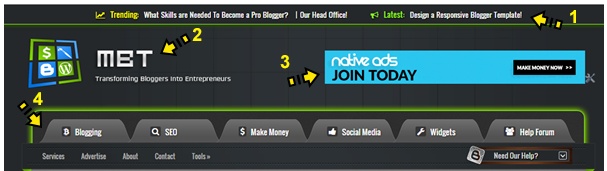
Header consists of:

  1. Top Sticky bar
  2. Left: LOGO
  3. Right: Banner
  4. 2 Menus

Now after applying the CSS3 media queries we will be able to completely change the look of the Header widgets for mobile devices. As shown below, we have made simple changes to make sure every widget adopts automatically to a change in screen size.

After: viptechworld.blogspot.com?m=1

mbt responsive header

Header reorganized in this format:

  1. Sticky bar is removed using isMobileRequest
  2. LOGO now covers full width
  3. Banner pushed down and covers full width
  4. Menus replaced with a responsive menu and search box. You will add this menu by reading Part#4 of this tutorial.
  5. Note that we have removed the menus using isMobileRequest (Read Part#3.2)

Liked it? Lets learn how to accomplish it!

Find Elements' Parent Classes or IDs

I have written a detailed tutorial that you can read to learn  how to find what is the parent class or parent ID of any HTML element on your webpage using browser inspection method. We will uses these Classes or IDs to control their appearances in mobile devices.

You can also find what are the classes of your header widgets by visiting the Layout page.  The bolded text that you see are your Parent classes. In my case these are headerleft and headerright as shown below

Header layout

Note: that classes start with a (.) symbol while IDs start with (#) symbol.

So in our case the parent classes or IDs are as follow:

  1. For Sticky bar it is: #bloggernotificationWrap
  2. For Logo it is .headerleft
  3. For banner it is .headerright
  4. For Menus it is #Main-Menu and #secondary-Menu

Select Device Breakpoints

Now you just need to add the following CSS codes in their respective breakpoints using the CSS Responsive Cheat Sheet (Refer Part#2) . Always start with larger screen sizes and then move to smaller break points.

Note: Refer to Part#2 of this tutorial series to understand what I mean by choosing breakpoints or ZONES

We will choose the 786px breakpoint which is ZONE4 . You will add the following CSS code inside this zone as shown below:

/*-----iPads, Tablets ZONE4 ----------*/

@media only screen and (max-width:768px) {

#header {overflow:hidden!important;width:100%!important;}

.headerleft{top:5px;margin-bottom:10px!important; width:100%;}
.headerright{float:none;margin:0 auto!important;width:100%;}

.headerright a img,.headerleft a img{
  max-width: 75%!important;height:auto;
  margin-left: 0;
  position: absolute;
  left: 30px;}

}

Important points to note:

  • overflow property should always be added to the Parent container to avoid the horizontal scrollbar from appearing. The parent class of header is #header in all templates.
  • Full width or 100% width is set for widgets you want to cover the entire screen and which may not float.
  • !important declaration is added when you want to force this style to override all existing styles. If in case a style is not applied that you added in your stylesheet then add this declaration.
  • I have declared a maximum width of 75% for the images inside Header widgets. They will appear in their original sizes but in case the images were too big for the Mobile screen then this declaration will take care of it and will not allow the width to exceed 75% of the full width available.

Remove Objects using isMobileRequest

Now instead of using Display:none to hide the stickybar and the menus from static header we wil instead use the conditional tag for mobile devices which is isMobileRequest and this method is SEO friendly and really speeds up the webpage.

  • Please read Part#3.2 of this tutorial to learn what this condition does.

All you need to do is to enclose the sticky bar container and menu containers inside the conditional tag as follows

<b:if cond='data:blog.isMobileRequest == "false"'>

<div id="bloggernotificationWrap">
--------------

-----------------

</div>

</b:if>

<b:if cond='data:blog.isMobileRequest == "false"'>

<nav id="Main-Menu">
--------------

-----------------

</div>

</b:if>

<b:if cond='data:blog.isMobileRequest == "false"'>

<div id="secondary-Menu">
--------------

-----------------

</div>

</b:if>

Save your template and you will find your header all responsive in a blink of an eye! :)

Need Help?

The tutorial above may sound a little techy for those who are not well versed with basics of HTML and CSS. But no worries your brother is here and the Forum community is here to help you 24/7 =)

Feel free to ask us as many questions as possible and we would love to help. Peace and blessings buddies. May we all prosper and live happy forever. God bless you all! ^_^

Read More

03 June 2016

// // Leave a Comment

Pert 7: Create Responsive AdSense Ads and Safely Hide AdSense units

Adsense Ads show blank spaceIt is almost a year since Google introduced Responsive Ad units for Mobile friendly weblogs and sites. Previously the Ads were synchronous which had a fixed ad size and were slow too in loading but now all responsive Ad units are  asynchronous in nature which means they will render and load seamlessly without effecting other elements from loading on your web page, this immensely reduces your blog load time.  One of the problems linked with Responsive Ad units is that most bloggers found it difficult displaying the async code on their blogspot blogs. For many users the responsive Ad unit shows a blank space or gives an error on browser console.

Many blogspot users contacted us how we managed to show responsive ad units on all our sites So today we will share the solution that will help you display responsive AdSense Ads in Blogger that is the only Fix to avoid the vacant space issue  (no Ad being displayed) and you will also learn how to hide AdSense ads using the display:none property which is now amazingly allowed only for asynchronous ads by Google.

Update : Safely Hide AdSense Ads using "Display:none"

Why Should You use Responsive Ad Units?

Just like how a Responsive web design allows you to dynamically control the presentation of your webpage according to the properties of the screen size that it’s being viewed on similarly a responsive ad unit allows you to control the ad size on your page. You can choose which Ad size to display on your iPhone, Samsung, Tablet or iPad. You can also decide when to display ads and when to hide it for small screen devices.

Following are reasons why you should use responsive units

  1. Your Ads load asynchronously, thus making your page load faster as opposed to the Old Adsense Code which slows down web page loading.
  2. Automatic sizing based on the space available, shows high resolution ads to your visitors thus increasing overall CTR. Your ads will not look chopped or cut from edges on small screens.
  3. You can now Hide Ads! Google now allows users to use the display:none CSS property to hide Ad units. This is only allowed for responsive units.
  4. Mobilegeddon Penalty punishes sites that are not mobile friendly and which do not load fast. Responsive Ad units makes your ads fluid and flexible and make pages load faster, thus providing the best user interface.

The only drawback is that Adsense responsive Ads do not change size on device orientation unless page is reloaded. So same ad will be displayed in both landscape and portrait view when the user rotates the device without page reloading.

Why Do you See a Blank Space?

If you are seeing a blank space or empty Ad spot with no ad being displayed then you are probably making one of these mistakes:

Popular Reasons

  1. The Parent container has no width set: Async Ad code won’t load if you have not mentioned a width to the container where you placed the ad. You must define a class for your Ad code to control its display using CSS Media Queries.
  2. You didn't remove the data-ad-format tag: You will see the following error on your browser console when you forget to mention a width to the Ad container or when you have not removed the smart-sizing tag i.e. data-ad-format="auto" This tag is the major reasons for Ad not being displayed. Google need to work on it to make it work better.

    responsive-ad-size-console-error

  3. If ads are displaying fine on your sidebar widgets but not working inside blogger template then the only reason this is happening could be that you did not encode the HTML code correctly. We will discuss below how to do it.

Less Popular Reason

Your site uses third-party JavaScript: If you are using scripts to hide ads until all page content have loaded then Async Ad code won't load because it will not be able to calculate the required size for the responsive ad unit.

In both these cases, you will see a blank space and no Ad being displayed. We will guide you how to fix the first reason and for the 3rd-Party JavaScript thing, I am sure this does not apply to most users because rarely would anyone use such a script. So lets go straight to the solution!

Create a Responsive Ad Unit

Note: The method described below abides by the Google AdSense Program Policy rules and is safe and tested.

You will Create an ad unit in the usual way:

  1. Go To your Adsense Account
  2. Click My Ads tab
  3. Click "New Ad unit"
  4. Choose “Responsive” from the Ad size options
  5. Fill other details and click Save and get code.

select responsive Ad size


Your code will look quite similar to this:

<script async src="//pagead2.googlesyndication.com/pagead/js/adsbygoogle.js"></script>
<ins class="adsbygoogle"
     style="display:block"
     data-ad-client="ca-pub-5679872456940800"
     data-ad-slot="4890310675"
     data-ad-format="auto"></ins>
<script>
(adsbygoogle = window.adsbygoogle || []).push({});
</script>

From the above code you just need your data-ad-client alpha-numeric code and your data-ad-slot numeric code as shown bolded in the code above. Copy these two codes from the Adsense code you generated and keep them safe inside a notepad because we will need them later.

Add Responsive Ad Units inside Blogger Widgets

If you wish to add AdSense Content unit inside a widget on your sidebar then follow these steps:

1. Go To Blogger > Layout

2. Click "Add a Gadget"

3. Select "HTML/JavaScript" Widget

4. Paste the following code inside it

<style type="text/css">
.adslot_1 { max-width: 300px; height: auto; margin:10px 0px; }

@media (min-width:100px) { .adslot_1 { width:125px; height:125px; } }
@media (min-width:180px) { .adslot_1 { width:180px; height:150px; } }
@media (min-width:200px) { .adslot_1 { width:200px; height:200px; } }
@media (min-width:250px) { .adslot_1 { width:250px; height:250px; } }
@media (min-width:300px) { .adslot_1 { width:300px; height:600px; } }
@media (min-width:336px) { .adslot_1 { width:336px; height:280px; } }
@media (min-width:468px) { .adslot_1 { width:468px; height:60px; } }
@media (min-width:728px) { .adslot_1 { width:728px; height:90px; } }

</style>

<script async src="//pagead2.googlesyndication.com/pagead/js/adsbygoogle.js"></script>
<ins class="adsbygoogle adslot_1"
     style="display:inline-block;"
     data-ad-client="xxxxxxx"
     data-ad-slot="xxxxxx"></ins>
<script>
(adsbygoogle = window.adsbygoogle || []).push({});
</script>

Make these changes:

  • Set 300px equal to your sidebar width. If your sidebar is 400px in size then set width to 400px. Suppose If you want to display ads on Footer or Header where you may even display large Leaderboard ads then you may set the width to 800px.
  • Replace xxxxxxx with the alpha-numeric code of Client ID that you saved inside a notepad.
  • Replace xxxxxx with the numeric code of your Ad slot that you saved inside a notepad.

5. Save your widget and you are all done!

The code above will display a Half Page Ad, Squares and Rectangles for small, medium and large sizes based on the Mobile Device Screen size.

The above code will display best performing Adsense ads on your sidebar. I have assigned the best performing Larger Ad units to the code above to give a higher CTR. The table below shows how great larger ad units perform compared to smaller units.

best performing AdSense ad units

The above chart was shared by the AdSense optimization team in an online webinar.

Want to Add more Ad units?

If you want to add another Ad unit on your sidebar then you can use the same code as I shared above with a slight change.

  • You will replace adslot_1 with adslot_2 everywhere. To add a third unit replace adslot_1 with adslot_3 and so on..

Add Responsive Ad Units inside Blogger Template

To ad responsive Ads inside the blogger template you need to make a slight modification to the code above. We need to encode the JavaScript code which renders the ads. I have made all changes for you. You just need to use the code below instead:

<style type="text/css">
.adslot_1 { max-width: 300px; height: auto; margin:10px 0px; }

@media (min-width:100px) { .adslot_1 { width:125px; height:125px; } }
@media (min-width:180px) { .adslot_1 { width:180px; height:150px; } }
@media (min-width:200px) { .adslot_1 { width:200px; height:200px; } }
@media (min-width:250px) { .adslot_1 { width:250px; height:250px; } }
@media (min-width:300px) { .adslot_1 { width:300px; height:600px; } }
@media (min-width:336px) { .adslot_1 { width:336px; height:280px; } }
@media (min-width:468px) { .adslot_1 { width:468px; height:60px; } }
@media (min-width:728px) { .adslot_1 { width:728px; height:90px; } }

</style>
&lt;script async src=&quot;//pagead2.googlesyndication.com/pagead/js/adsbygoogle.js&quot;&gt;&lt;/script&gt;

<ins class="adsbygoogle adslot_1"
     style="display:inline-block;"
     data-ad-client="xxxxxxx"
     data-ad-slot="xxxxxx"></ins>
<script>
(adsbygoogle = window.adsbygoogle || []).push({});
</script>

The yellow highlighted region shows the encoded code. You will make same changes to the above code as you did for the sidebar. No extra steps involved here. Simply copy the code, make changes as guided and start enjoying a better Mobile revenue thanks to Google Adsense Responsive Ads!

See them in action!

The ad in the footer of this blog is responsive so I am sharing some screenshots from iPhone devices to show how the ads auto adjusts itself based on device screen size.

Actual size on laptops and Tablets (728 X 90 Ad Size)

Adsense ads on ipad mini


iPhone Portrait view  (300 X 250 Ad Size)
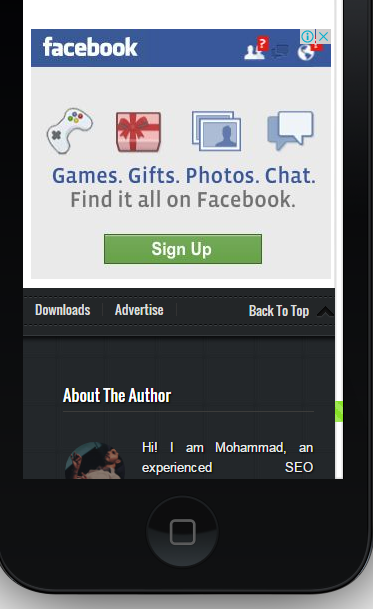
Adsense ads in portrait view


iPhone Landscape view (468 x 60 Ad size)
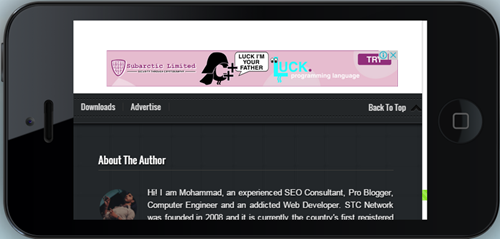
Adsense ads in landscape view

Need Help?

This is the first and only tutorial which guides you properly on how to setup Responsive Ads on blogspot blogs, if you need any help or further assistance then please feel free to let us know by posting your question in the comment box below or by joining our 24/7 Free Help forum.

In our next tutorial, we will discuss how to use display:none property to hide Adsense on small screen devices. Till then do experiment with the code above and do let us know your feedback. Peace and blessings buddies! =)

Read More
// // Leave a Comment

Steps To Recover From Google's Mobilegeddon's Penalty


Mobilegeddon is the nickname give to Google's latest mobile-friendly search algorithm that promised to uproot rankings for websites that weren't mobile-friendly. But in reality, it’s not quite as potent. Effects of this algorithm thus far on websites, and they have not been catastrophic as Google has threatened. However, a lot of websites did get hit. Let's talk about how to take the first steps towards recovering from this penalty.


Mobilegeddon is the next big thing in Google algorithm updates. Unlikes Panda, Penguin, Pigeon, Hummingbird and the other algorithms, you might have noticed it’s not an animal name. This is because the people who name things aren’t really consistent or original. Don’t worry about it.

This particular update, as the moniker implies, deals heavily with mobile SEO. Specifically, it makes “being mobile-friendly” a ranking factor. If your site is mobile friendly, congratulations; you’re perfectly safe. If your site isn’t mobile-friendly, you’ll be hit by the penalty, which might be pretty bad depending on how far from mobile friendly you are.

What does Mobile Friendly Mean?

Google has a list of mobile guidelines, but they can all be summarized fairly easily.
  • Avoid anything that doesn’t work on mobile. This means Flash, primarily, though it also includes custom code and JavaScript that doesn’t render properly.
  • Use text that’s properly sized for small devices. If the user has to zoom in just to read your site, it’s not going to be very useful to them, and they’ll find another resource.
  • The same goes for other content. Make sure everything fits on the screen. If the user has to scroll horizontally, you’re going to earn a penalty.
  • Make sure your links and navigation are spaced out and easy to use. The user should never be able to “fat finger” the wrong link because two are too close together.
If you want to test to see if your site is mobile friendly, you can use Google’s testing tool.

Fixing a Mobile Penalty

Step 1: Figure out how bad the hit to your traffic was. The Mobilegeddon update rolls out over the course of a week, so choose a 2-week period both before and after the date to get an idea of your traffic. Use whatever analytics program you want, though Google Analytics is probably the best for diagnosing a Google penalty. If your traffic wasn’t actually hit all that hard, you can get away with taking your time on a mobile update. Of course, you’ve had plenty of time already.


Step 2: Determine the scale of the changes you need to make. This is a pretty complex step, and step three will depend on what you determine here.


Step 3: Implement whatever level of fix you need to. This might mean tweaking your existing site, or it might mean implementing an entirely new responsive redesign. How quickly you need it, and how harshly it hurts you to not have it, depends on how badly you were hit. If you’re using WordPress, WP Touch Pro is an easy solution.


At the smallest level, use tools like Google’s pagespeed ranking to see if your site is fine, but just a little slow. Sometimes you’ll see a drop in traffic because your mobile site is a little slow, but there’s nothing technically wrong with it. Just work to speed up your side by making code a little more streamlined, maybe cutting a bit of the heavier multimedia content, that sort of thing.


A step up the chain, maybe you have a mobile site but it breaks several of Google’s best practices. Maybe you have too many links and they’re too close together. If your links are hard to tap accurately, you’ll be penalized. Remove or space out your links. The same goes for too-small fonts or multimedia content that doesn’t load. You can’t force iPhone users to view a Flash site, and Google will penalize you for it.


At almost the top level, you have the lack of a mobile site at all. Maybe users can use your desktop site via a phone through liberal use of zoom and magnification tools, but at least it functions. You’ll be penalized pretty hard for this, but the most necessary visitors can still use your site. Take the time to develop a responsive redesign, and hurry to implement it, but make sure it works before you throw up some hastily and shoddily coded substitute.


The absolute top level is when you have a no mobile site at all, and your desktop site doesn’t work for mobile devices. This might be because it’s too small or hidden behind code a mobile device can’t parse. This also affects heavily Flash-based sites. If this is the case, you might as well be completely deindexed from the mobile search results. You have some serious work to do to get your traffic back, though to be fair, you probably didn’t have anything other than bounces from mobile sources to begin with.
Read More