Showing posts with label Android Apps. Show all posts

14 December 2016

// // 1 comment

How to Hide Apps and Files In Your Android Phone Calculator?


Today I am going to share the trick on how to hide important files and folders inside calculator app on Android device. Go through the post to know about it.

We all know that there are billions of users who are using Android right now. Android is the platform which implements more features than any other operating system. We have already shared few tricks on how to hide Files & Folders in Android as we all need privacy in our contents.

Today we are going to share another trick that will let you hide your files and folders in Android. We are going to use “Smart Hide Calculator” which is a fully functional calculator app but with a little twist. This app is actually a vault where you can store pictures, videos, and documents. You need to setup a password and then press the “=” button then you will get to see the files inside the app.

How To Hide Files & Folders Inside Calculator On Android


“Smart Hide Calculator” is a fully functional calculator app but with a little twist. Once you enter the password (You get to set it on the first start of app and can also be changed in future) and press the ‘=’ button then boom you are presented with an interface where you can hide, unhide pictures, videos, documents or files with any file extension placed in a folder on SD card, and if your device have root, you can also hide (freeze) and unhide (un-freeze) apps.

1 First of all, you need to download and install the app Smart Hide calculator on your Android device.


2 Now open the app and you need to set a password for using this app. This is the password that you will use to unlock your hidden files.
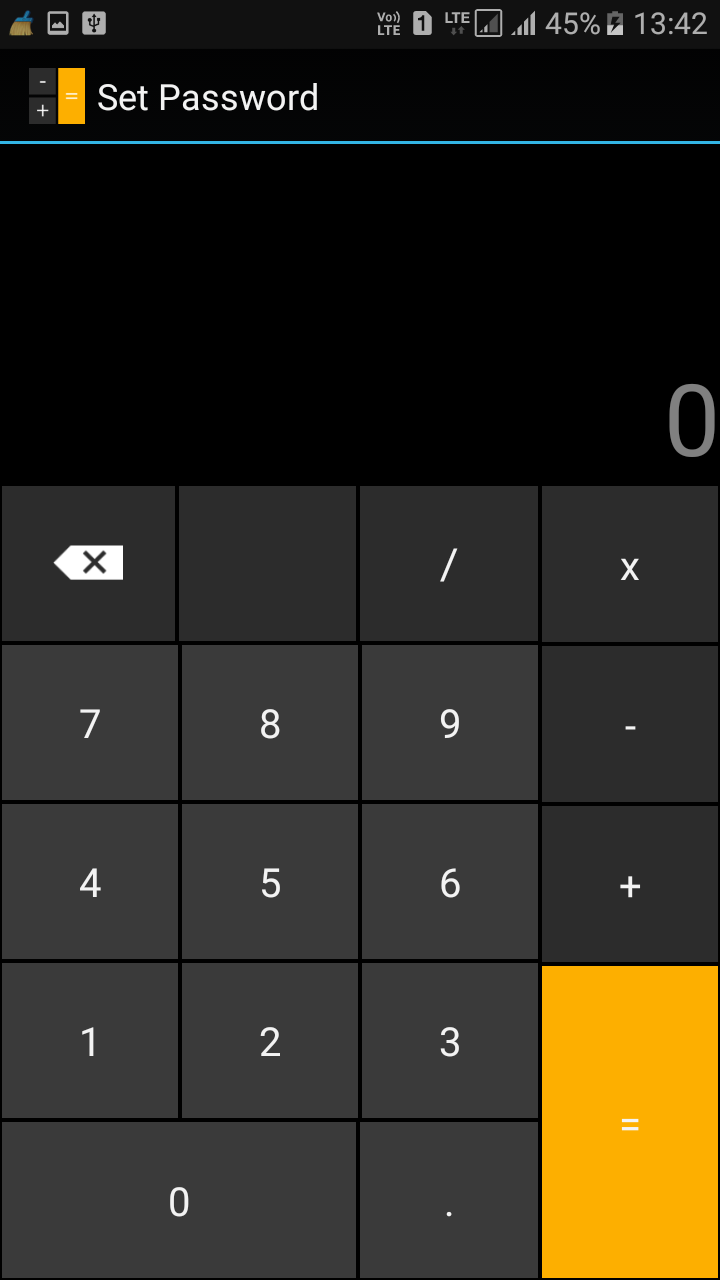


3 After you confirmed the password, you will see the fully functional calculator app on your screen.
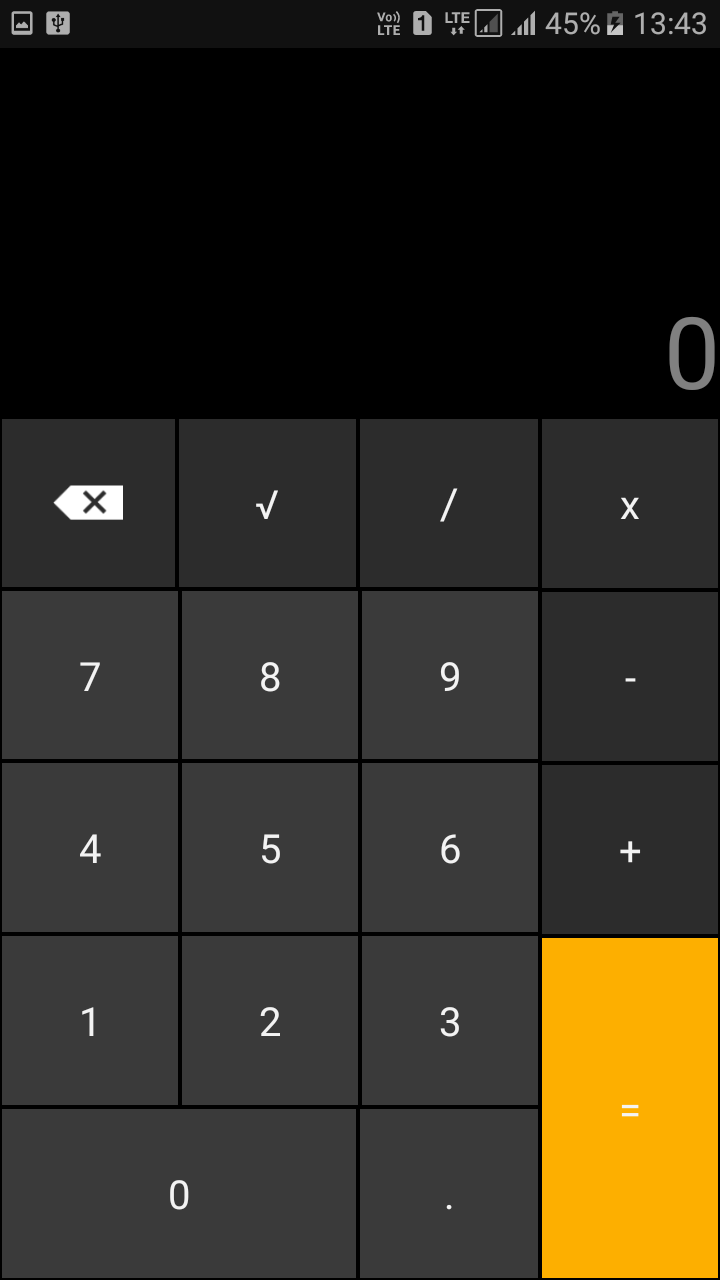


4 You just need to enter the password and tap on “=” button to access the vault.
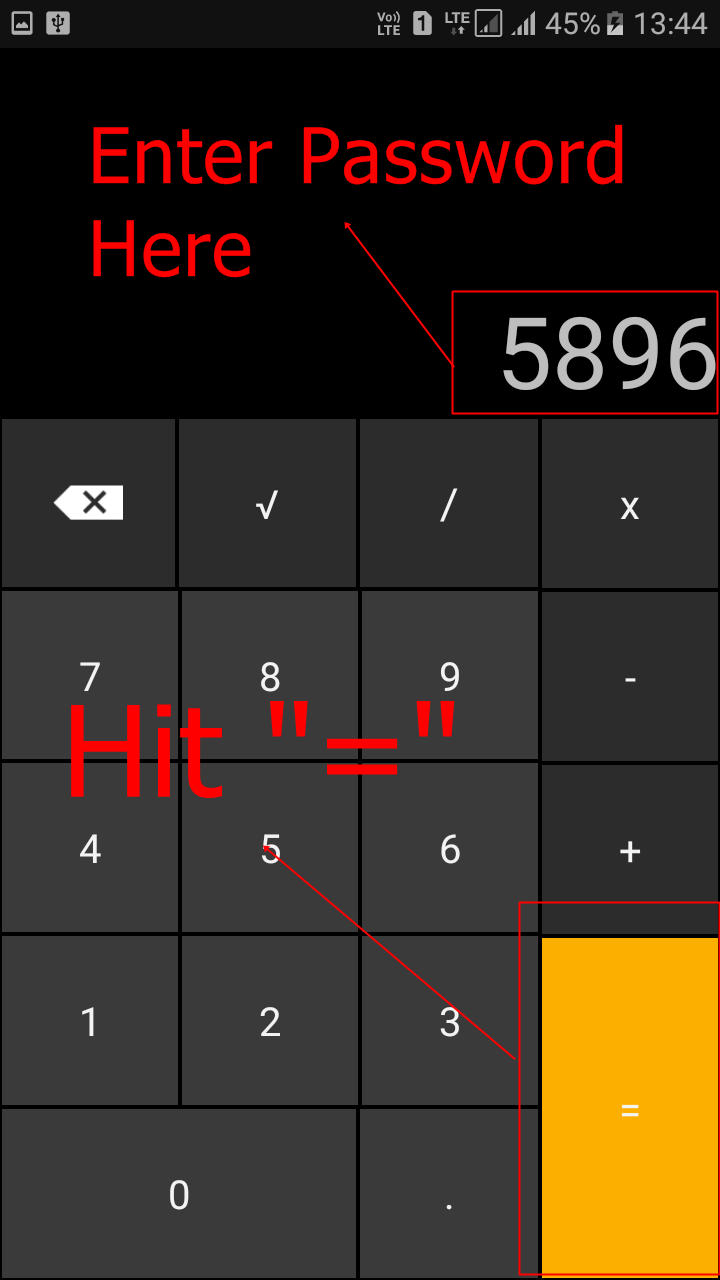


5 Once you entered the password and tapped on ‘=’ button you will get to see the options likes “Hide Files”, “Unhide Files” etc.


That’s it! You can now select the files that you want to hide. If you want to unhide the files then simply go to the vault and select the option “Unhide Files” and from there you can unhide files.


So, above is all about how to hide important files and folders inside calculator app. This is the most effective hiding tools you can have in your device because everyone will think it as a simple calculator. Hope you like the post, share it with your friends too.

Read More

04 June 2016

// // Leave a Comment

REVIEW: Textnow App For Free Sms's,Picture,Calling....

Unlimited SMS messaging, and calling. TextNow gives you your very own dedicated phone number with which you can text and call your friends, family, significant others, neighbors, or anyone else you would like!

PEOPLE WHO LOVE TEXTNOW

“If you want an unlimited texting without the high priced carrier based texting plans, then Textnow is the app for you.”

4/5 rating –AppAdvice

“Anyone needing an unlimited number of texts, we’d recommend TextNow as our app of choice”

–AppAddict

“Just as fast sending/receiving as regular texts for me (including people who don’t have the app) .”

-tbm248, MacRumors

DEDICATED PHONE NUMBER

Give your friends your very own phone number they can call!

UNLIMITED TEXT AND PICTURE MESSAGING

You can send as many texts and picture messages as you want.

IS IT REALLY FREE?

There is no catch. No yearly or monthly fees! It is completely free!

Read More
// // Leave a Comment

How To Disable Heads Up Notification Per App On Android

The method is quite simple and just need a rooted android device that will allow Xposed installer to run on device. And after having Xposed installer you will be using a Xposed module app to disable the heads up notification per app on your android device. For this follow the guide below.

Steps to Disable Heads-up Notifications Per App on Android:

1. First of all you need a rooted android as Xposed installer can only be installed on a rooted android as Xposed installer can only be installed on a rooted android, so Root your android to proceed to get admin access of your android device.

2. After rooting your android device you have to install the Xposed installer on your android and thats quite lengthy process and for that you can proceed with our Guide to Install Xposed Installer On Android.

Disable Heads-up Notifications Per App on Android Disable Heads-up Notifications Per App on Android

3. Now after installing the Xposed module you need a cool Xposed module that will allow you to Disable Heads-up Notifications Per App on Android and for that you will be using the module Heads off .

4. Now install the app and then in Xposed module this app and after that you need to reboot your android device for the proper working of the module in your device.

5. Now open the app and you will see list of all the apps that being currently installed on your device and disable the heads off for any of the app according to your wish and you are done. Disable Heads-up Notifications Per App on Android.

Read More
// // Leave a Comment

App To Create Fake Low Battery Status On Your Android

This app creates fake low battery status on your android mobile phone. If you don’t want to hire your phone to your mates or your family members, then this app helps you in making excuses and you are saved after all.

https://play.google.com/store/apps/details?id=com.hopesoft.android.fake.low.battery&hl=

Read More
// // Leave a Comment

App To Create Proffesional Youtube Videos On Your Android

Friends! Do you want to create a proffesional YouTube video for your channel on your android?

This app that i'm about to share is for you! YouTube Creator Studio is an android app that will help you create a professional YouTube video for your channel's subscribers and viewers.

Download link: https://play.google.com/store/apps/details?id=com.google.android.apps.youtube.creator&hl=en

Read More

04 May 2016

// // Leave a Comment

[Tutorial] How To Use 2 Facebook | Whatsapp and | Twitter Account On One Phone

best_2_in_1_laptop-1200-80.jpg

Now you can use 2 Facebook accounts on your android phone. It's not only Facebook. You can equally use 2 Whatsapp accounts. 2 twitter accounts 2 instagram account 2 of any account you want to use. It's just like splitting your phone into two parts that don't see each other! I'll show you how to do this in this post.

The same way it’s difficult to comprehend why people marry more than two wives, it’s the same way you keep wondering why people always want to run more than two account on any social media.

Not just running more than one account on Instagram , Facebook or WhatsApp but ability to log in to all the account at the same time without needing to log out of one before login in the other.

Even your mobile device supports dual sim that is why this application you are about to read about allow you run more than one account on your favorite social network. Parallel Space is a unique app which allows you to sign in two different Facebook accounts simultaneously on a single Android device.

Why Should I Try Parallel Space Multi Account?

Parallel Space is the only app in Google Play which allows you to run multiple accounts simultaneously....

>> Powerful yet tiny: As small as 2MB.

>>Facebook: Connect different friends with second Facebook account

>> Instagram: Share different photos with second Instagram account

>>Games: Play two accounts at the same time and double up the fun!

>>Parallel Space supports 99% apps in Google Play, explore it by yourself now!

Not just that but you can also run more than two WhatsApp using this application on one Android smartphone.

Downside - Why you'll Hate Parallel Space

If you are that type that have feeble, infected, defected and quarter to go battery capacity, then this app will help you drain it faster than your widest imagination. Remember, Ii it's isn’t double, then it isn’t Android.

Download Parallel Space Android app to run multiple accounts on Android phone

DOWNLOAD

How to Use Parallel Space to run multiple accounts on Android phone

Run it>> Add any app you have installed on your phone to its dashboard. It will ask you to configure a new account for these apps.

That's it i hope this article helped you.Don't forget to comment and share it...

Keep Visiting - http://minetechworld.heck.in

Read More

16 March 2016

// // Leave a Comment

Paytm Unlimited Recharge Trick-Get Unlimited Free Recharge From Paytm By Paying Rs 50

Hello Guys. I know everyone wants to earn unlimited free recharge so Today we are giving you a new trick through which you can earn unlimited free recharge from paytm by paying Rs 50 only.

This is an loot offer. Everyone can use this trick.

IMG_20150607_193319.jpg

To earn unlimited recharge follow the steps below :-

How To Earn Unlimited Recharge From Paytm :-

1) Download Paytm App From Here

2) Open the app

3) Create new account

4) Initiate recharge of Rs 50

5) Proceed and apply promo code :NEW50

6) Pay the amount and complete your transaction.

You will get Rs 50 cashback in your paytm wallet within few minutes.

Trick Starts From Here :-

1) Now unistall paytm appp

2) Install Paytm App From Here Again.

3) Open the app and create new account

4) Initiate recharge of Rs 50

5) Proceed and apply promo code :NEW50

6) You will a message that - "Your Coupon is applied successfully and cashback of Rs 50 will be created in your account within 24 hours"

7) Now minimise your paytm app and download Paytm Wallet App From Here

8) Open your old account in which you have Rs 50 paytm cash

9) Send Rs 50 to your newly created account

10) Now you successfully received Rs 50 paytm cash in new account.

11) Open the minimised paytm app

12) Click on Proceed

13) Pay the amount using paytm cash you received.

14) That's it. You will get Rs 50 cashback in your paytm wallet within few hours.

Repeat the steps again to earm unlimited recharge from paytm app.

Hurry !!

Tags :- Paytm tricks, earn unlimited recharge, free recharge, recharge tricks, free recharge tricks, paytm loot, unlimited recharge tricks.

Read More
// // Leave a Comment

Earn Unlimited Paytm Cash, Mobile Recharge, Mobikwik Cash : TasksBusks App

Taskbucks is a new free recharge app. Taskbucks app is offering free recharge, paytm cash for download apps, completing tasks and referring friends. This app is different among all free recharge app because this app is offering paytm cash and in future they will offer mobikwik cash also.

Taskbusks

To Earn unlimited paytm cash follow the steps below :-

How To Earn Unlimited Paytm Cash From Taskbucks App :-

1) Download Taskbucks app From Here

2) Install and open the app

3) Enter your mobile number and verify it

4) Enter our referral code:T6PJP5 5) After successfully creating account, you will see many offer

6) In order to earn unlimited paytm cash start downloading app from offers.

7) You will get more that rs 10 for downloading each app

8) You can also refer your friends.

9) You will get rs 40 per refer.

10) You can earn unlimited paytm cash by referrring friends, completing tasks and offers.

Tags :- Taskbucks free recharge app, earn unlimited paytm cash, paytm tricks, taskbucks tricks, free recharge app.

Read More

14 January 2016

// // Leave a Comment

[Android][Tutorial]How To Solve Math Problems Using Your Phone's Camera

theproblem.png

How to Solve Mathematical Problems using Phone Camera

Photomath is the world’s smartest camera calculator!

Just point your camera to a Math expression, and PhotoMath will instantly display the answer.

It is currently used by millions of users worldwide this app helps to make your learning procedure faster than ever.

Benefits Of PhotoMath

PhotoMath supports basic arithmetic, fractions, decimal numbers, linear equations and several functions like logarithms.

Support for new Math is constantly added in new releases as the aim is to make all the Math easy to learn Students can use it as a tool to learn Math while parents can use it to quickly check their kid’s homework.

With PhotoMath, you can have a Math teacher in your pocket!

PhotoMath Gives a step-by-step solution for each and every mathematical question..

Steps to Solve Mathematical Problems using PhotoMath Are as follows :

Step 1. You need to Go to google play store and search for the app PhotoMath(Or Click At The Playstore Link I've Given Below). You need to install the app on your smartphone in order to solve maths using your phone Camera.

Step 2.Once you installed the app you will be given a free tutorial on how to use PhotoMath for solving a problem.

Step 3. After following every tutorial, you will be redirected toward the main page of the app and you will see a camera over there.

Step 4. You need to scan your mathematical question with the help of camera just like you scan a QR code. Now wait for few second and it will automatically detect the question and instantly give you the answer.

In case if PhotoMath is not able to find the solution to your mathematics problem this app gives you the option to send a feedback with the question.

Their help team will come in rescue. PhotoMath works best on printed problem sometimes the camera failed to detect the problems of handwritten text due to low resolution.

Download Photomath

Please Post Comment If You Liked The Article Or Have Any Queries Your Comments Motivate Me For Posting More For You.Thanks!

Read More

13 January 2016

// // 1 comment

[Amazing][Hot][Java][Android]Galaxy Chat And Play : A Must Have App

imgout?file_id=13846236583109625858&s_ui

Description

Sign up for free and join over 30 million registered users from around the world! Create your avatar and dive into an incredible virtual world. Chat, make new friends, play online games and much, much more! imgout?file_id=12684307878950466562&s_uiimgout?file_id=8378866635354107906&s_uidimgout?file_id=10531587257302269954&s_uiimgout?file_id=14296596545810046978&s_uiimgout?file_id=6505369190469449730&s_uid

Key Features

*Customize Avatar*

Choose from a wide variety of colorful avatars, fancy clothing items and alluring costumes. Stand out from the crowd!

*Socialize*

Explore hundreds of chat rooms or create your very own chat room, decorate and make it popular. Send private messages, post to your blog and microblog. Galaxy is just so good for socializing!

*Online games*

Play Mafia, Gold Rush, Safari and many other interactive games to win exciting prizes.

*Dating*

Meet even more interesting people or find your very special one!

*Ranks*

Become the best player, make your avatar the most powerful or be a top model. Choose your rank!

*Virtual pets & gifts*

Get a cute pet, care for it, watch it grow and give birth. Make stunning gifts to your Galaxy friends and family!

*Ad free*

You won't be annoyed with ad banners. Nothing will distract you from chatting with your friends.

So what are you waiting for?

Get the ultimate social networking experience today!

Download It According To Your Phone On The Official Website : blackdownloadarsdk.png

Read More

07 January 2016

// // Leave a Comment

[Special] 15 Amazing Things You Can Do After Rooting Your Android Phone | MineTechWorld

Amazing Things You Can Do After Rooting Your Android

All the tricks work after rooting your android and if you haven’t rooted your device till yet then go for it today with my guide How To Root Any Android .

So after root try the below tricks.

#1 How To Change IMEI

Number Of Any Android Change IMEI number of any android using the cool tweaker Xpsed Installer that will work on rooted android. With IMEI number changing you can fake your device identity. Change IMEI number of any android

#2 How to Recover WiFi Passwords Using Android Device

When device gets connected to wifi network then the wifi password key gets stored in your device and that can only be extracted from your device if you root your device and try this tweak. How to Recover WiFi Passwords Using Android Device

#3 How To Add Floating Windows Feature In Android

The method is easy but little bit time consuming as in this you need a rooted android. As the tool that we had discussed right there only works in rooted android. Install floating windows in android

#4 How To Remotely Turn Off Any Android By Sending SMS

The app that you will be installing will let you to shutdown your android by sending SMS to the android that you have configured with it.How To Remotely Turn Off Any Android By Sending SMS

#5 How To Block Ads On Youtube In Android Easily

Block the ads on Youtube official app after rooting your device and getting the cool Xposed module to block ads. Block Youtube Ads On Android

#6 How to Restrict Data Usage for Specific Apps On Android

Disallow specific apps to use your internet bandwidth when you are connected to cellular data or wifi network in your android. Turn Off Cellular Data for Specific Apps on Android

#7 How To Backup and Restore IMEI in Rooted Android

In this tutorial a cool app that will help you to backup and restore your IMEI file in your android that can get corrupted while flashing different Custom Roms. Backup and restore imei in android

#8 How To Install Kali Linux On Any Android

Install all the linux files on your android by downloading them and then using the complete interface for your pentesting or any other way that you like. Kali Linux On Android

#9 How To Install and Run Backtrack On Android

The best way to use you android for pentesting by installing backtrack on your android after rooting your android and installing the tools that will let you to do this. Install and Run Backtrack On Android

#10 How to Create a Recovery Flashable ZIP for Android Apps

Create a flashable zip of your favorite apps that you can use when your apps get deleted either through factory reset or while installing custom roms. Create Android Apps Recovery Flashable Zip Files

#11 Make Your Android To Boot Faster After Rooting

Make your android starts quickly everytime you boot up by making booting process faster after rooting your device. Boot Your Android Faster Techviral #12 Run Multiple Instagram Account On Android After Rooting

With this you can easily using two or more than it accounts of your instagram profile in your single android. Also you can use another apps also like multiple whatsapp account etc. Multiple Instagram Account

#13 How To Automatically Save Snapchat Images In Android Easily

Save all your snapchat images in your android by downloading a cool app that will work on rooted android and after installing Xposed installer. How To Automatically Save Snapchat images In Android

#14 How To Change Working Of Hardware Buttons In Android

Configure your android buttons by remapping their functionality in your android device after rooting it. Remap keys In Android

#15 How To Crack & Patch Any Android App

By Lucky Patcher Hack or Crack Any Android App Using Lucky Patcher that will work after rooting your android.

So Enjoy

Please Drop Comments If You Liked This Article And Get A Chance To Become A Vip.

Read More

31 December 2015

// // Leave a Comment

Latest New operamini on Net Now Is Opera Mini (Best and Good For Browsing and Downloading) Fastest

Description: Here is an improved version of Opera Mini specifically for visitors to my site!

With this version the best browser of all time daily visits to the Internet will be for you even more fast and safe!

Try it and see for yourself

- download any web-pages up to 30% faster!

-Traffic compression up to 90% ! The real savings!

-Optimized power consumption.

-Improved quality of fonts.

-New bright icons and redesigned user interface and hang loose.

Download the best browser for Android promo now and enjoy the mobile Internet every day!

Download Operamini Plus.apk

Read More
// // Leave a Comment

How to use camera flash as incoming call alert in Android smartphones.(Android Trick)

This is how to use your Android smartphone’s flash as incoming call alert Suppose your phone is in silent mode, and we all know that we couldn’t listen to any noise of incoming calls or message tones

But we used to get vibration but that was not enough now a days because the upgraded series of upcoming phones doesn’t have the decent vibration to aware people so what if a flash will be lighted in your pocket?

It will not cause any harm like vibration does. So here is the tricky and easy part.

The How-To:

You need to install an app named Flash Alert 2 on your Android Smartphone this is a trustable app and you can install this app via third-party or via Google Play Store.

Download Flash Alert 2

1. Download Flash Alerts 2 App on your Android Device and install it. Give it enough permission to handle your flashlight and incoming calls and notifications.

2. After installing Launch the applications, it will hardly take 10-15 seconds to launch for the first time because it takes some priority on your phone flash.

After the installation completes it will ask you to do a test, you need to follow the onscreen instruction in order to complete the test.

3. Make Sure the flash Alerts is on in the App and the incoming Call option is enabled. After you had updated the setting make sure to save it and then reboot your phone.

4. After the reboot Open the app and activate it once again. and now its time to wait and receive an incoming call. And you will see that your phone LED flashlight is blinking while receiving any call.

5. That’s it. You’re ready to go!

Read More

30 December 2015

// // Leave a Comment

How to open android apps from lockscreen.

Usually, to reach an application, you must unlock your screen and jumble among the various pages available from your home screen.

Also, if you need to implement multitasking, you must return again to the Home screen and start the search procedure to start your second application and so on.

But there are simpler solutions that could ease your app accessibility.

How to launch your favourite Apps from your Android Lockscreen

Several Android applications offering you to create shortcuts in your lock screen launcher exist as Hangar,

however, another seemed far more interesting and effective as it gives you the opportunity to launch your frequently used applications from the lock screen or via the flap notifications.

This application is Launchify.

How to launch your favourite Apps from your Android Lockscreen

How to launch your favourite Apps from your Android Lockscreen

Launchify will add shortcuts to your applications on both the lock screen and the notifications panel.

It will conclude what services you use most often and place them in areas shortcuts, however, it will not stop either that way.

It may also resolve which applications to place in the shortened depending on your location,

be it your home or workplace.

Key Benefits Of Launchify

Quick access- It gives you quick access to the app that you needed most on your lock screen as well as notification panel.

It is Intelligent- It offers you the right app in the right time, that depends on your time and place. It remembers the apps and the time you usually use them and brings you the recommended app next time.

Multitasking- It offers you to swaps between the apps from your notification panel which is sure to ease your workload.

How to use Launchify to access your favourite apps from your Lock Screen

1# Download Launchify from Google. After you download successfully open the app.

How to launch your favourite Apps from your Android Lockscreen

2# After you opened the app Launchify will ask you to “Allow Launchify to track your app usage by enabling usage access” click on Ok.

How to launch your favourite Apps from your Android Lockscreen

3# After this you need to go to the setting which is located on the top. You need to enable the first three option which are

‘Background Tracking‘,

‘Notification‘,

‘Notification Icon on Top‘ .

How to launch your favourite Apps from your Android Lockscreen

4# After you completed the step its time to restart your Android device. After the reboot, you can easily access your favourite apps on you notification panel as well as lock screen.

So that is the easiest method out there to launch your favourite and most used apps directly from your Android device lock screen as well as from Notification panel.

Read More

23 October 2015

// // Leave a Comment

Candy Camera 1.69

com-joeware-android-gpulu.jpg Tech Specs

• Price: Free

• In-app purchases: None

• Content rating: Low Maturity

• Android: 2.3.3 and up

• File name: Candy-Camera-For

Size: 23.02 MB

download-large.gif

Read More

20 October 2015

// // Leave a Comment

5-Best Secure Browsers For Your Android To Browse Securely on Internet

Everything is not about freebrowsing!What's the essence of your browsing without you been secured on internet( www.minetechworld.heck.in)

5 Best Secure Browse For Your Android To Browse Securely

#1 Ghostery Browser

This is one the best browser that every security alert user knows. This popular browser provides you the private browsing by default.

And the major part is that when you close it app erases all data, such as browsing history, downloaded files, forms, cookies, and entered passwords. Also this app provide you the fast page access from the websites.

#2 Dolphin Zero

Many of you must be familiar with this cool android browser as this browser provides you the high privacy while browsing over the web. Similarly like above browser, this browser also clears all the data like cookies, form data, passwords and all other cache files. So must give a try to this cool browser. dolphin-zero-android

#3 Krypton Web Browser

One of the best and my favorite browser is this as this browser is just better than all other browser. This browser works on HTTPS everywhere policy and that provides the high security while browsing and also its tabs are isolated from each other from one’e data to another that stops data trapping from other sites. Must use this browser atleast once. krypton web browser

#4 Javelin Incognito Browser The another popular browser that must be well known by the students as this browser provides you the proxy to bypass the blocked sites over the wifi. Also this brosers block ads on it and private browsing in it.

#5 CM Browser – Fast & Secure CM is well know to android user a group that had develop lots of cool apps, similarly their browser is also good and provides you the secure access over the internet and stops scripts that can track you over the web. cm browser - fast & secure

Apart from browser you can use some Best VPN For Android that gives you a secure private network to browse anonymously over the internet.

Don't ignore the post,try and drop your comments on your own point of view

Read More